

After you submit
Every replenishment moves through the same stages: payment, dispatch, receiving by Amazon, and received. You follow them all on the Replenishments page, and you get an email along the way.
Pay for a replenishment
Section titled “Pay for a replenishment”- After you submit, the replenishment shows Payment Pending, and the FreightNI invoice arrives by email.
- Open the replenishment. Click the arrow on the Payment banner to go to the invoice, or open it from Invoices.
- Pay online.
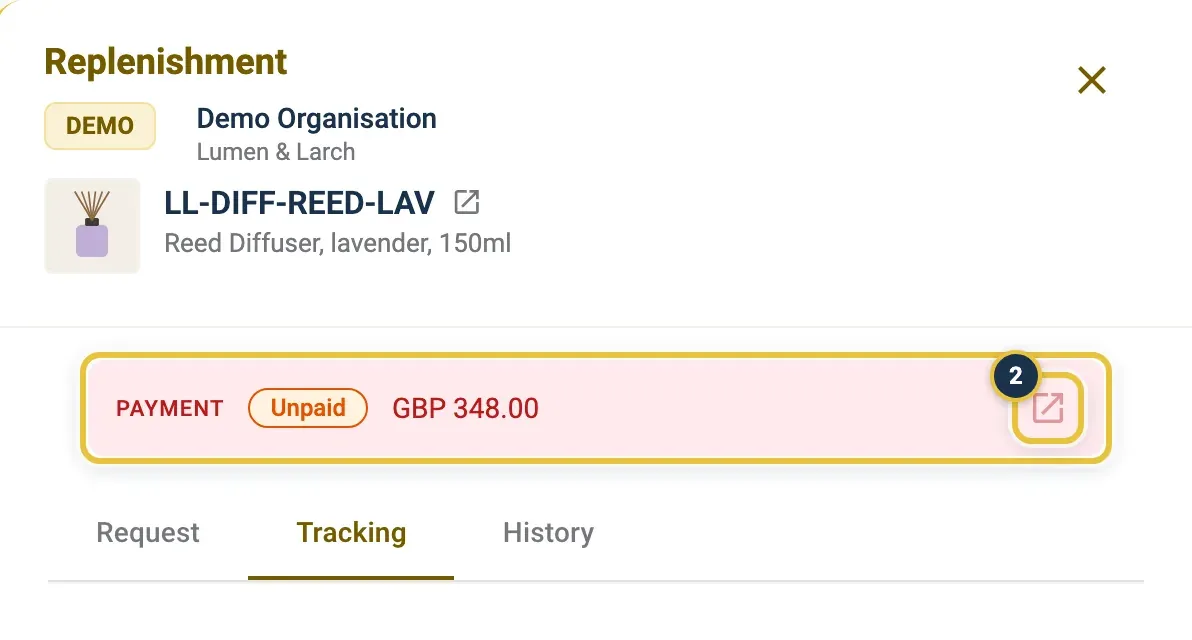
The Payment banner shows Unpaid and the amount. The arrow (2) opens the invoice.
Once it is paid, the status moves to To Dispatch by itself. No price yet? The replenishment shows Pending Quote until the warehouse team sends you a quote.
Track a dispatched replenishment
Section titled “Track a dispatched replenishment”When your cartons leave the hub, the status changes to Dispatched.
- Open the replenishment and go to the Tracking tab.
- See the route, the Shipment tracking ID, the Shipment batch and the Expected delivery date.
With Amazon connected, on Lite and Pro, the tracking ID is sent to Seller Central for you: look for the Synced with Amazon icon. Not connected? Add the tracking number to the shipment in Seller Central yourself.
Either way, keep the delivery window in Seller Central up to date. If the expected date moves, extend it early, before Amazon’s cut-off.
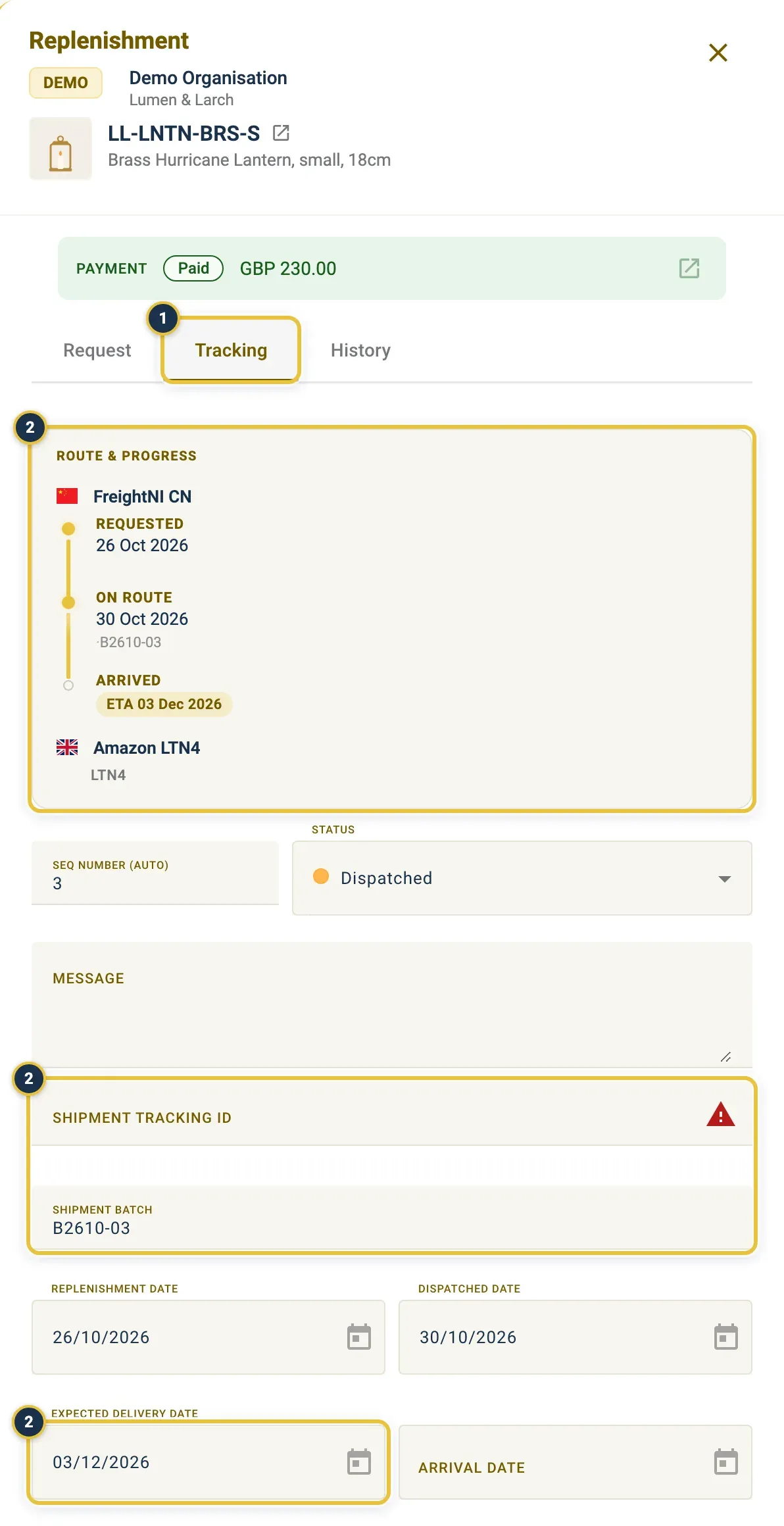
The Tracking tab (1): the route, the Shipment tracking ID, the Shipment batch and the Expected delivery date (2). The red icon means the tracking ID is still missing.
Once the tracking ID has gone to Amazon, a cloud icon with a tick appears at the end of the Shipment tracking ID field. Hover over it to see “Synced with Amazon” and when it was sent.
Follow a replenishment into Amazon
Section titled “Follow a replenishment into Amazon”Once the boxes reach Amazon, the status moves to Receiving By Amazon, then Received By Amazon.
With Amazon connected, a daily Amazon check makes these updates for you. The Amazon tab shows the Amazon shipment status, when it was Last checked, and the units shipped against the units received, so a shortage stands out.
Replenishment statuses
Section titled “Replenishment statuses”| Status | What it means |
|---|---|
| Draft | Not submitted yet. |
| Requested | Submitted, not yet priced or invoiced. |
| Pending Quote | Waiting for a price from the warehouse team. |
| Payment Pending | The FreightNI invoice is waiting for payment. |
| To Dispatch | Paid, waiting to leave the hub. |
| Dispatched | On its way to Amazon. |
| Receiving By Amazon | Amazon is checking in your cartons. |
| Received By Amazon | Done. |
| Issue At Amazon | Amazon no longer has the shipment, for example because it was cancelled. Use Fix shipment. |
| Delayed | Running late on the way. |
| Lost/Damaged During Transit | Something went wrong in transport. |
| Rejected | The request was rejected. Hover over the info icon for the warehouse team’s note. |
Handle an Issue At Amazon
Section titled “Handle an Issue At Amazon”If Amazon cancels the shipment, or something else goes wrong there, the replenishment is marked Issue At Amazon and you get an email. Click Fix shipment in the list, or in the replenishment itself, and tell EasyReports what you did in Seller Central. See Fix a shipment with an Issue at Amazon.
For a delay or damage on the way, contact the warehouse team.
See who changed a replenishment
Section titled “See who changed a replenishment”The History tab in a replenishment records every change: what moved, when, and who made it, including the automatic Amazon checks.
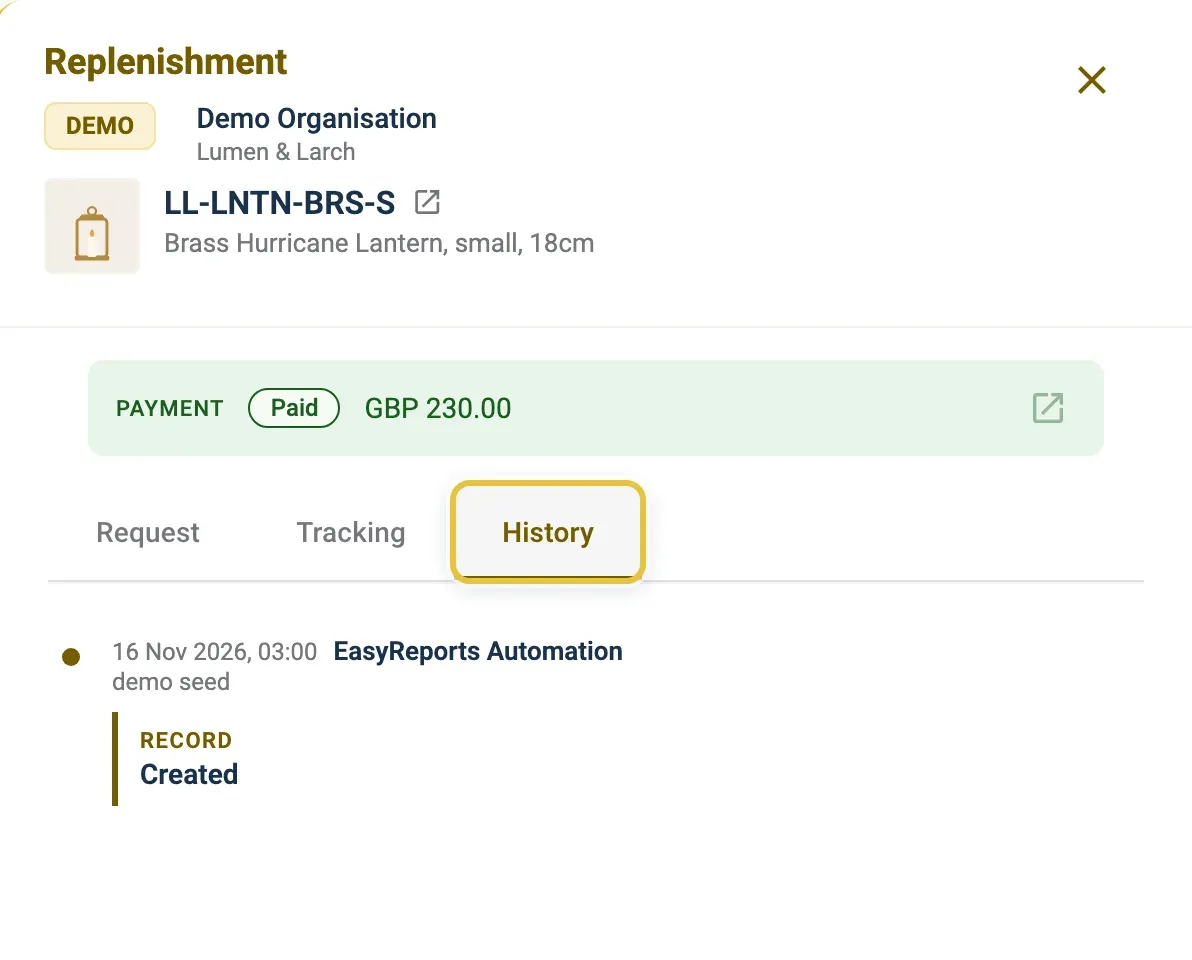
The History tab: each change, when, and who made it.
Find shipments that need attention
Section titled “Find shipments that need attention”On the Replenishments page, filter by Status, or choose Alerts > Missing tracking ID to find shipments still missing a tracking ID. See Replenishments.
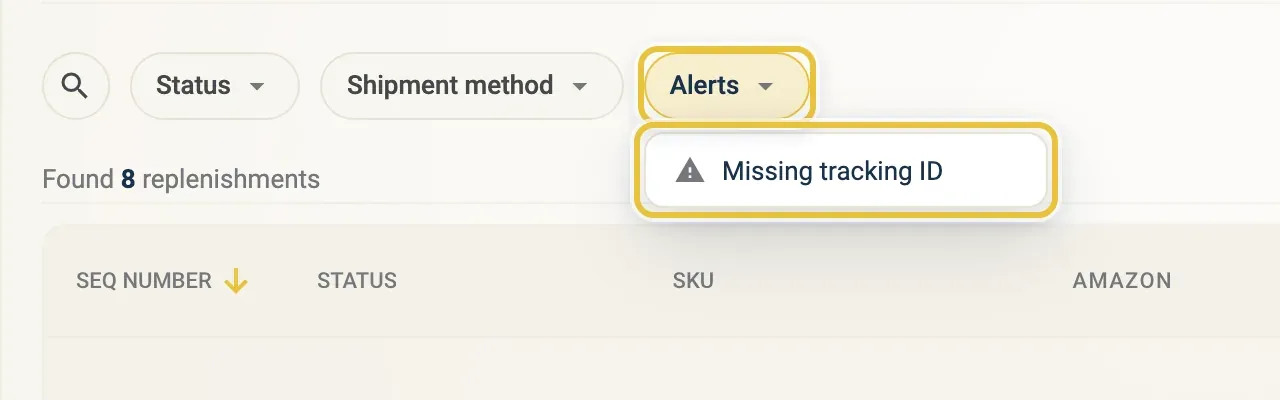
Alerts, then Missing tracking ID.
Delete a draft replenishment
Section titled “Delete a draft replenishment”You can delete a replenishment only while it is a Draft. After you submit, only the warehouse team can delete it.
- On the Replenishments page, click the Draft row to open it.
- Click Discard draft.
- Click Discard to confirm. If Amazon had already quoted the shipment, discarding the draft also cancels that quote.