

Shipping quotes
Need a freight price before you ship? Request a shipping quote. A shipping quote is a price request on its own: it does not book a shipment or create an order.
Request a shipping quote
Section titled “Request a shipping quote”- Click Warehousing in the top menu, then Shipping quotes.
- Click Add quote.
- On the Request tab, search for and pick the SKU.
- Choose where the goods are coming from (Origin/Supplier) and where they are going (Destination).
- Enter the Units required.
- Click Submit.
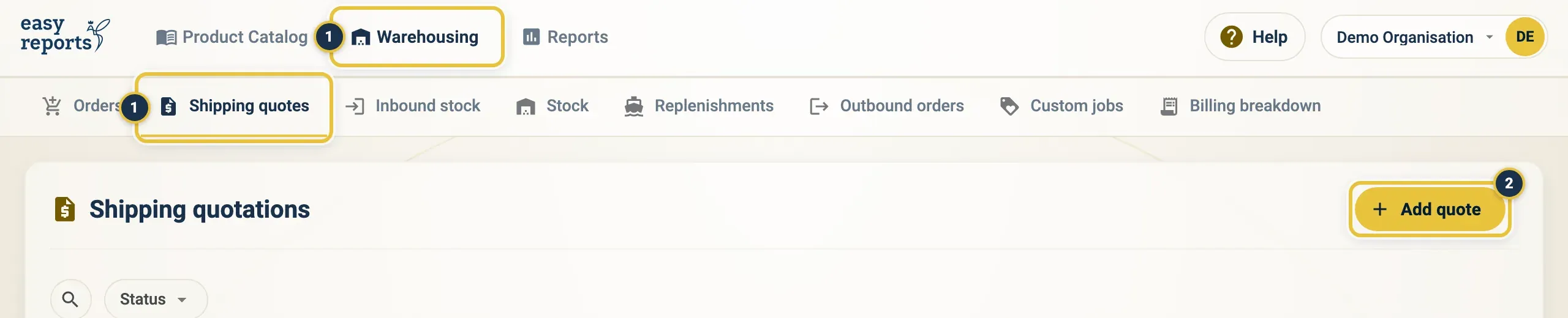
Warehousing, then Shipping quotes (1), then Add quote (2).
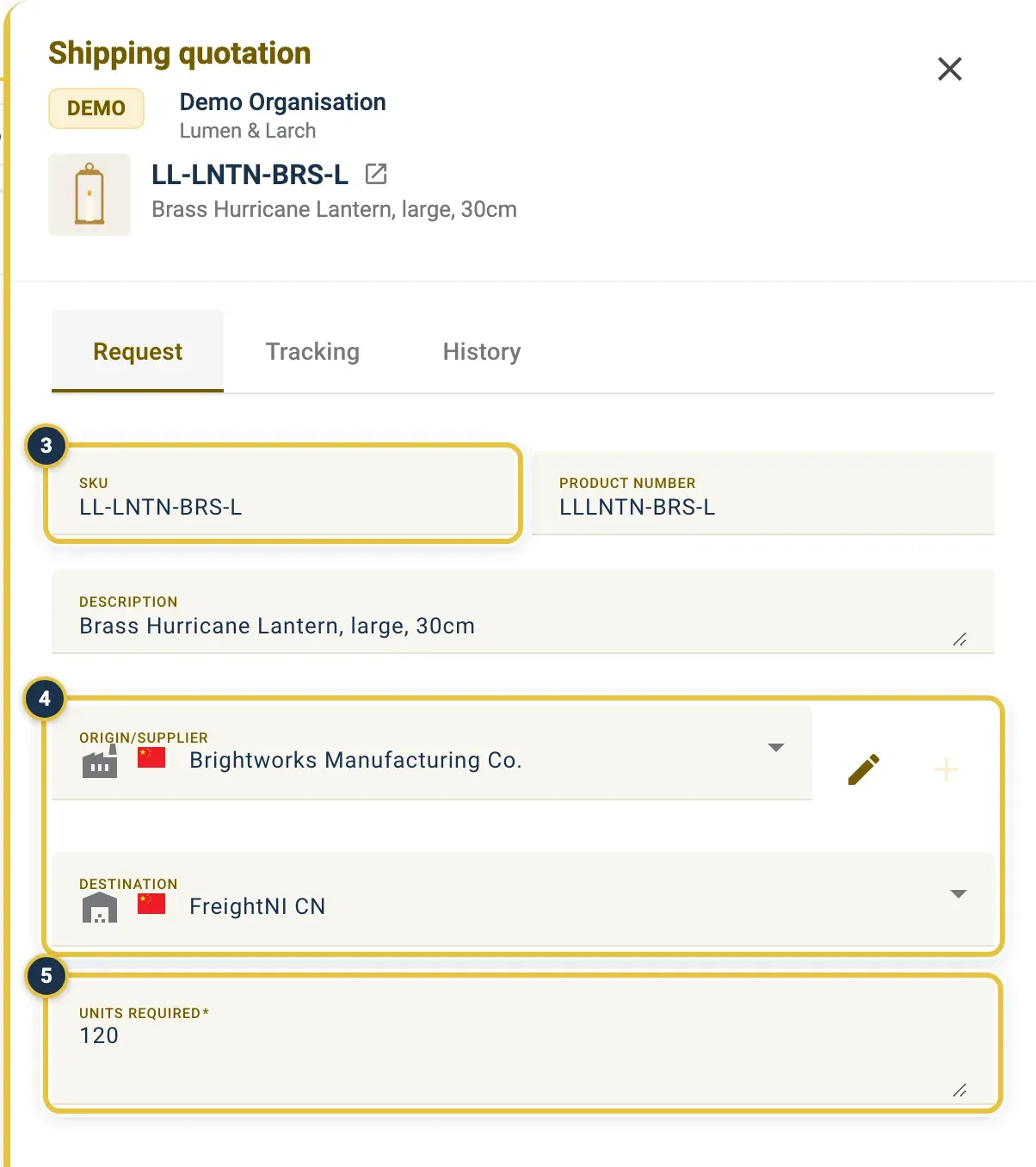
The SKU (3), Origin/Supplier and Destination (4), and Units required (5). This is a request that was already submitted, so the fields are locked; a new one has a Submit button at the bottom.
Follow a shipping quote’s status
Section titled “Follow a shipping quote’s status”- On the Shipping quotes page, find your quote. Use the Status filter or search to narrow the list.
- Read the Status column. A note icon shows a message from the warehouse team.
- Click the quote to open it. The Tracking tab shows the status, the message and the dates. The History tab shows every change.
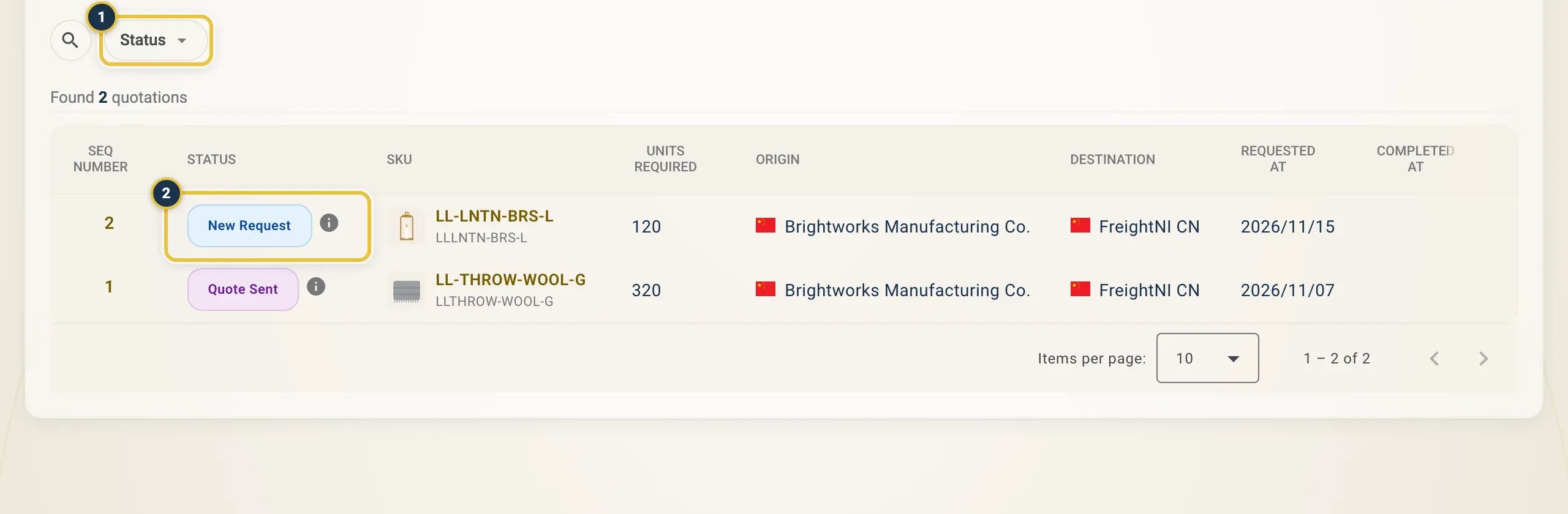
The Status filter (1) and the Status column (2), with a note icon when the warehouse team left a message.
A shipping quote moves through these statuses:
| Status | What it means |
|---|---|
| New Request | You have submitted the request. |
| Quote In Progress | FreightNI is working out the price. |
| Quote Sent | FreightNI has sent you the quote. |
| Quote Accepted | The quote has been accepted. |
| Quote Not Accepted | The quote was not taken up. |
| Cancelled | The request was cancelled. |
Good to know
Section titled “Good to know”- Once you submit a shipping quote, you cannot change it. Contact the warehouse team if something needs to change.
- Accepting a quote does not move any stock. To ship, add a replenishment or an outbound order.
- Every quote gets a Seq Number when it is saved. Quote it when you contact FreightNI.