

Your first week
New to EasyReports? Here is your first week in four steps. Each step links to a page with the full instructions and a short video.
Step 1: Set your password and sign in
Section titled “Step 1: Set your password and sign in”- Open the “Welcome to EasyReports” email and click Set your password.
- Choose a strong password and click Save Password.
- Sign in with your email and password, and enter the 6-digit code we send you. If you use a Gmail or Google Workspace address, you can click Sign in with Google instead.
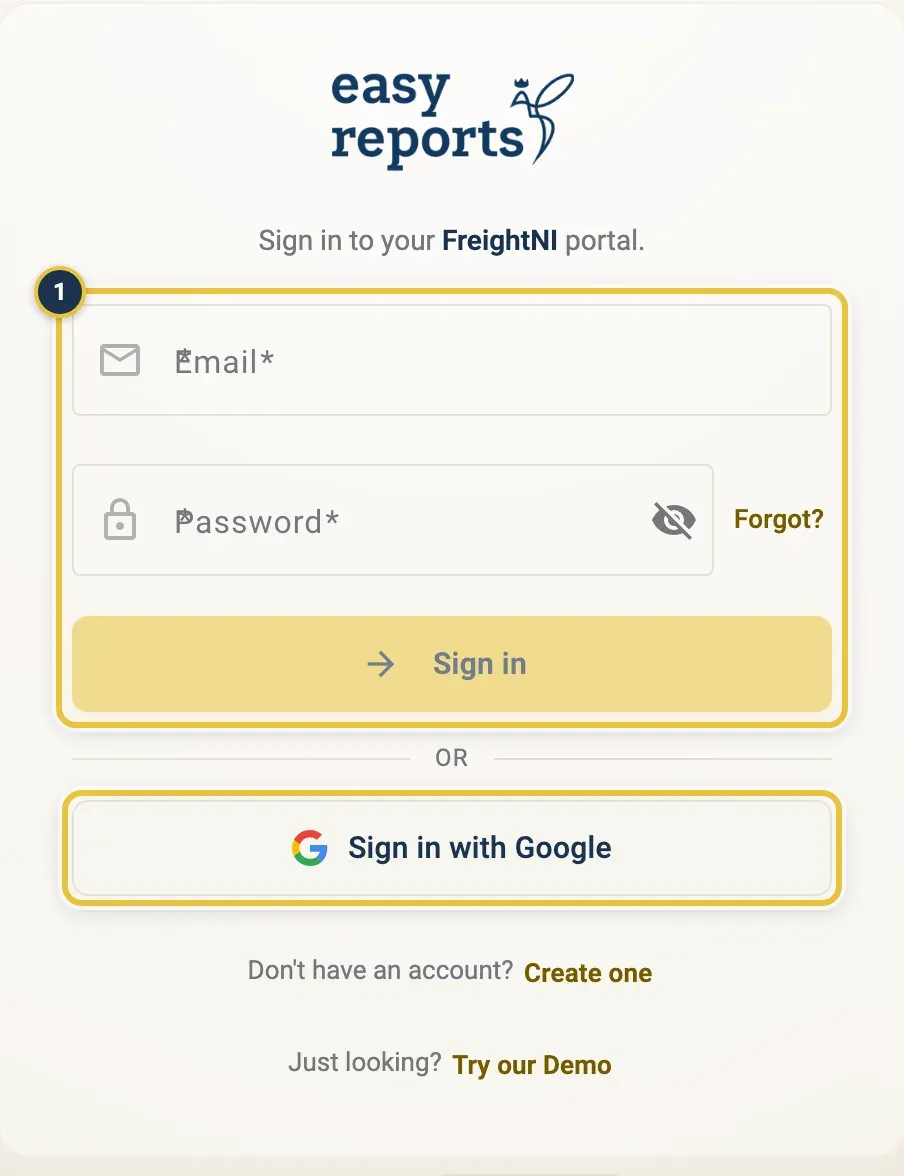
Sign in with your email and password (1), or with Google.
Full steps: Getting started and Signing in, passwords and 2FA.
Step 2: Complete your Product Catalog
Section titled “Step 2: Complete your Product Catalog”- Click Product Catalog in the top menu.
- Add each product with Add product, including its carton details: units per carton, carton weight, and length, width and height in centimetres.
On Lite and Pro, connect Amazon first. Then Auto-populate in each product’s panel fills in its details from Amazon, so you only add the carton details. To bring in your whole Amazon catalogue at once, ask FreightNI.
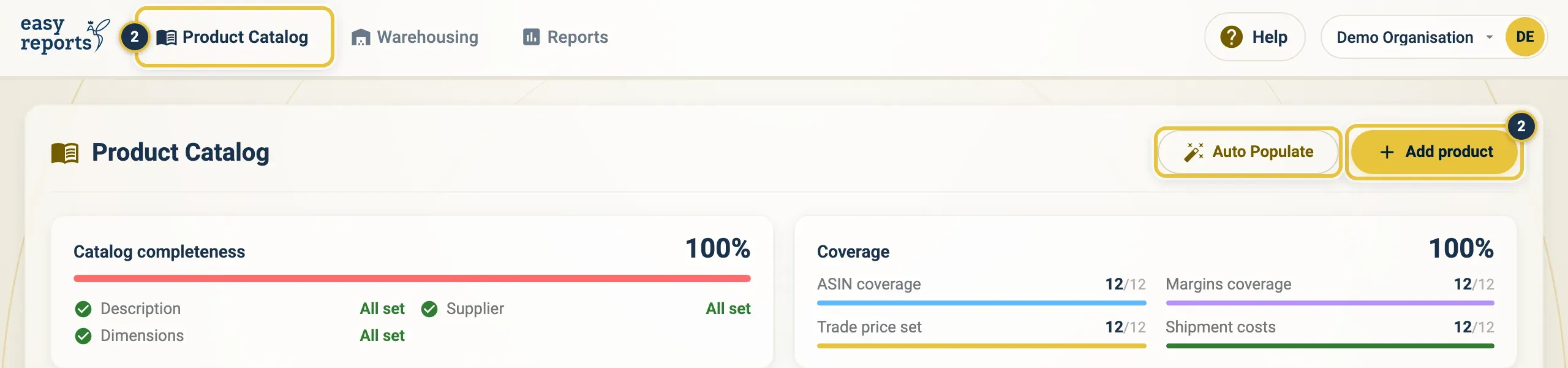
Product Catalog in the top menu, then Add product (2).
Full steps: Product Catalog and Connect Amazon.
Step 3: Send your first replenishment
Section titled “Step 3: Send your first replenishment”A replenishment sends cartons from the FreightNI China Hub to Amazon.
- Click Warehousing, then Replenishments.
- Click Add replenishment and follow the steps.
- Pay the invoice, then follow the replenishment until Amazon receives it.
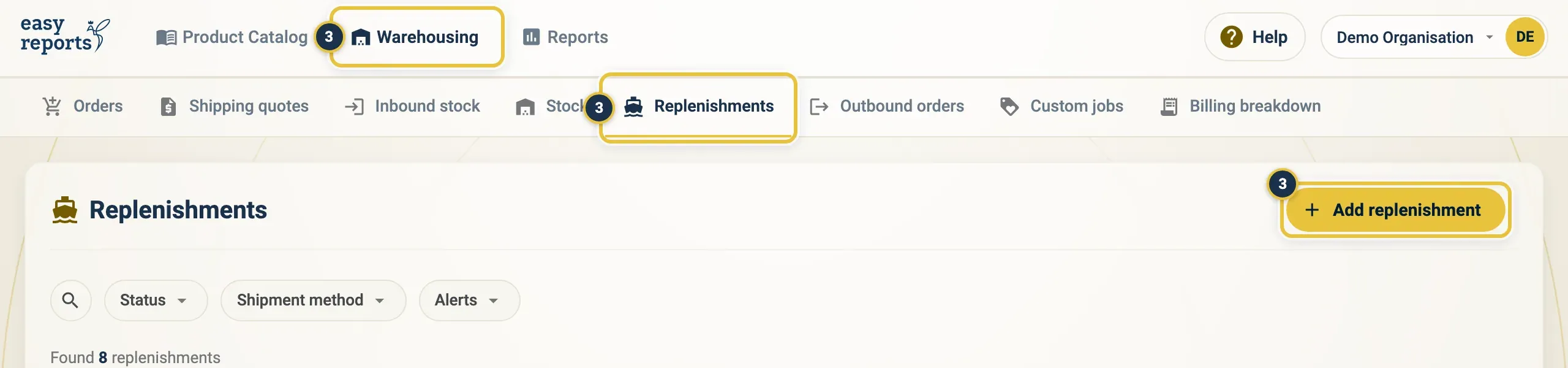
Warehousing, then Replenishments, then Add replenishment (3).
From the Main Dashboard to Replenishments under Warehousing, and back with the logo.
Full steps: Replenishments, Replenishment: automatic, Replenishment: manual and After you submit.
Step 4: Make the Main Dashboard your daily check
Section titled “Step 4: Make the Main Dashboard your daily check”Click the EasyReports logo to open the Main Dashboard. It shows low stock, open invoices and what’s on the move, on one page. Check it once a day.
Full steps: The Main Dashboard.
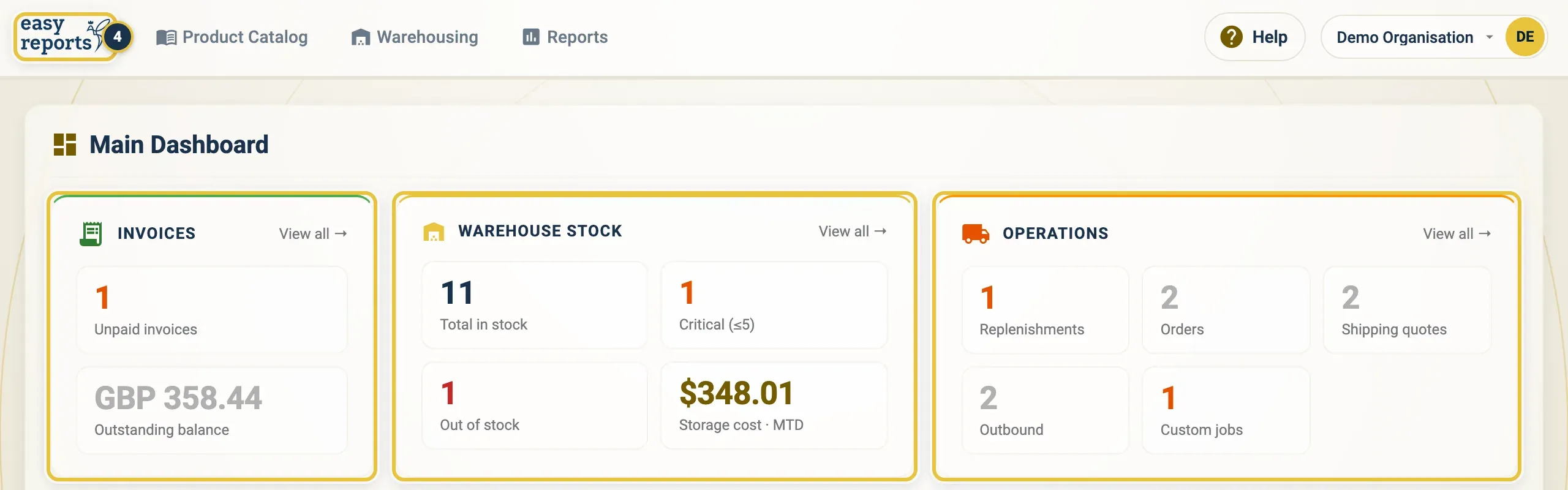
The logo (4) opens the Main Dashboard: invoices, warehouse stock and operations at a glance.
Week two: set up your costs
Section titled “Week two: set up your costs”On Lite and Pro, set up your costs in week two, so your margin reports add up. Add the landed cost for each product, so SKU Margins and your profit reports show real numbers.
Full steps: Set up your costs.
Good to know
Section titled “Good to know”- Questions along the way? The FreightNI team is happy to help. See Getting help.
- Every page has a Help button in the top bar with a short video for that page.