

Orders
Use Orders to ask FreightNI to buy your product, from your own supplier or one FreightNI finds, for a new product or a reorder. FreightNI takes it from there, and you follow each step in the order’s status.
Place an order
Section titled “Place an order”- Click Warehousing in the top menu, then Orders.
- Click Add order.
- On the Request tab, search for and pick the SKU.
- Choose the Order type: Product order for a new product, or Product reorder for one you have ordered before.
- Enter the Units required.
- Click Submit.
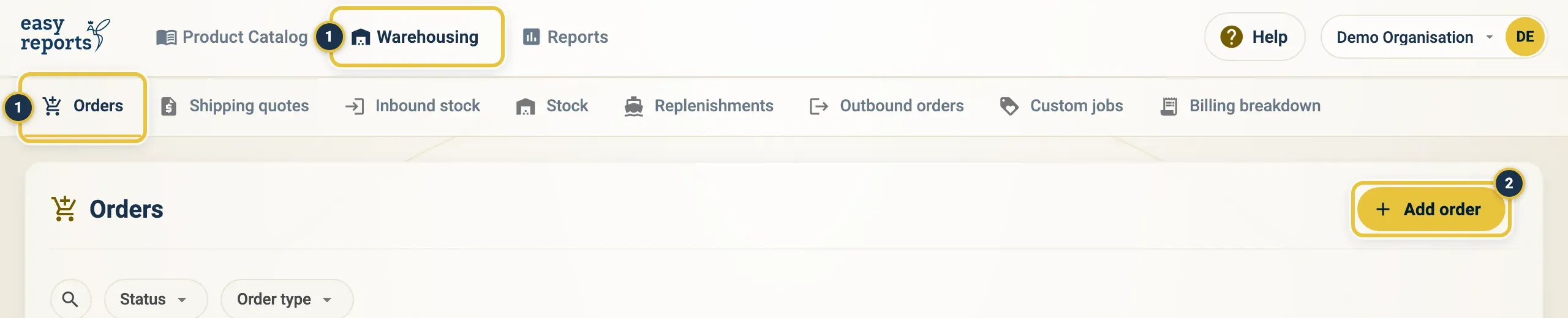
Warehousing, then Orders (1), then Add order (2).
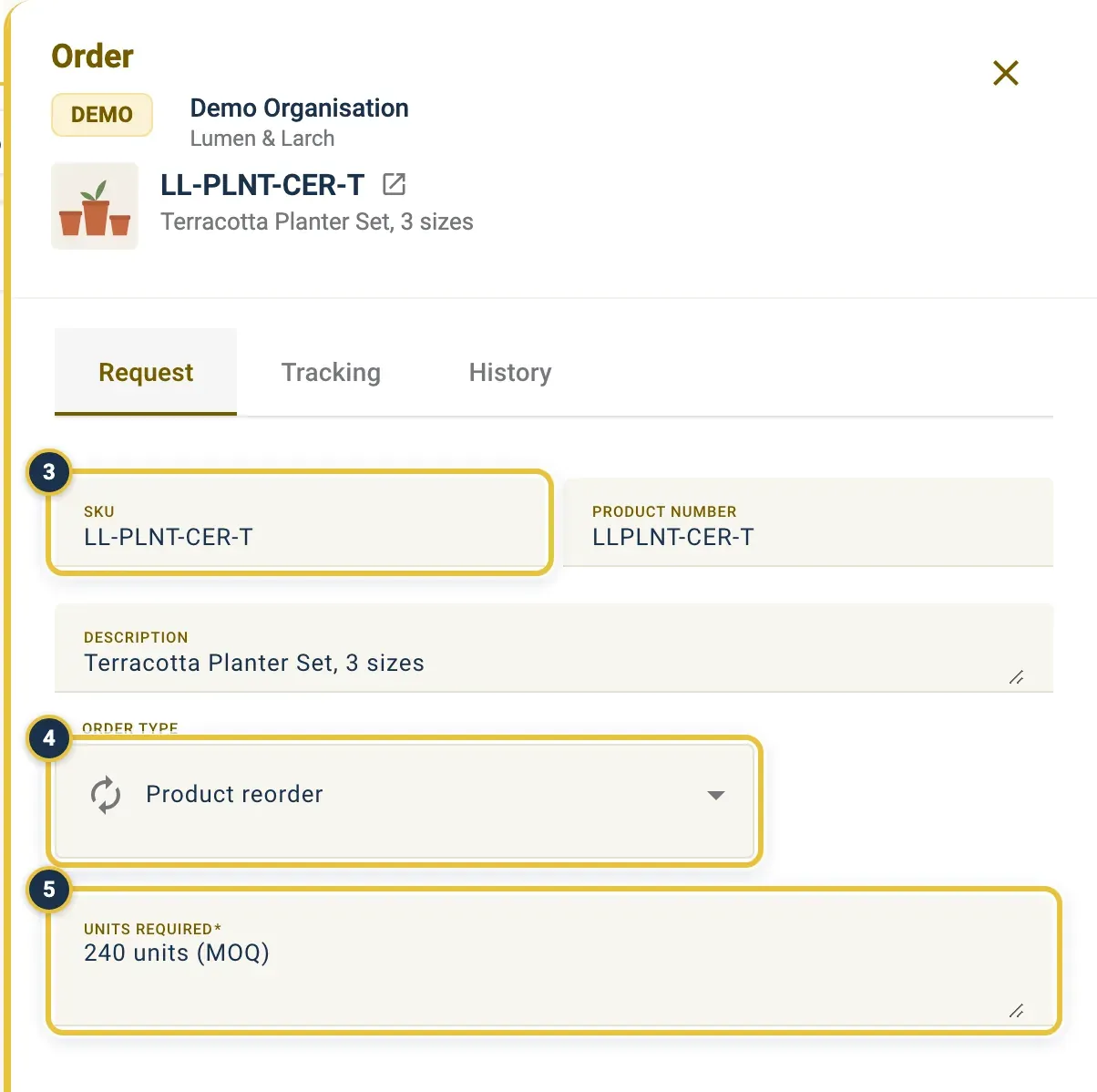
The SKU (3), Order type (4) and Units required (5). This is a request that was already submitted, so the fields are locked; a new one has a Submit button at the bottom.
Follow an order’s status
Section titled “Follow an order’s status”- On the Orders page, find the order in the list. Use the Status and Order type filters, or search, to narrow it down.
- Read the Status column. A note icon next to it shows a message from the warehouse team.
- Click the order to open it. The Tracking tab shows the status, the message and the dates. The History tab shows every change.
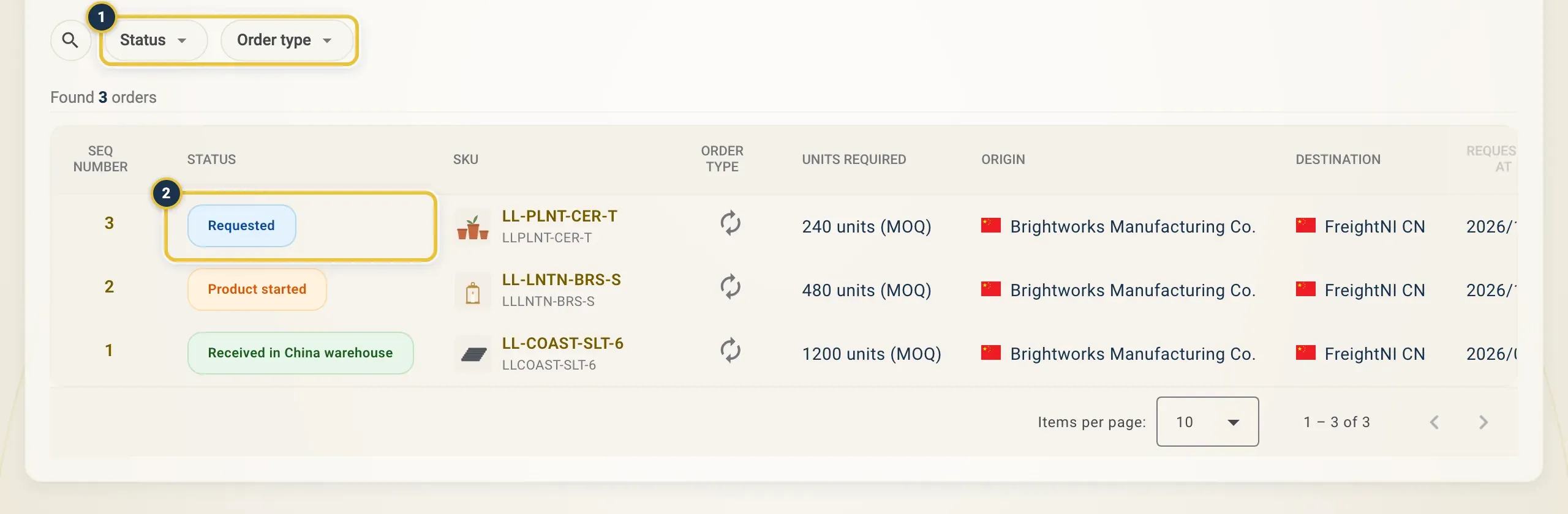
The Status and Order type filters (1) and the Status column (2).
An order moves through these statuses:
| Status | What it means |
|---|---|
| Requested | You have submitted the order. |
| Deposit invoice | The deposit invoice has been raised. Pay it under Invoices. |
| Deposit settled | The deposit is paid. |
| Product started | Production has started. |
| Product finished, balance due | Production is done. Pay the balance invoice. |
| Balance settled | The balance is paid. |
| Product moved to inbound | The goods are on their way to the warehouse. |
| Received in China warehouse | The goods are at the FreightNI China Hub. |
| Rejected | The order will not go ahead. Check the message. |
Pay the deposit and balance for an order
Section titled “Pay the deposit and balance for an order”- Open your user menu and click Invoices, or click the Invoices tiles on the Main Dashboard.
- Find the deposit or balance invoice and pay it. See Invoices.
Good to know
Section titled “Good to know”- Once you submit an order, you cannot change it. Contact the warehouse team if something needs to change.
- An order does not create an inbound or a replenishment by itself. When the goods arrive they appear in Stock, and you send them on with a replenishment.
- If your own supplier is already making the goods, record them as Inbound stock instead.