

Monthly reports
On the 8th of each month, EasyReports emails every user of your organisation a short report on the month before. The Monthly reports page shows each of those emails exactly as it was sent, so you can look back at any month. It is included in every plan.
Open Monthly reports
Section titled “Open Monthly reports”- Click Reports in the top menu.
- Choose Monthly reports in the sub-menu. On the Free plan, Reports opens this page straight away.
- The latest month opens. To see another month, click the Month filter and pick one.
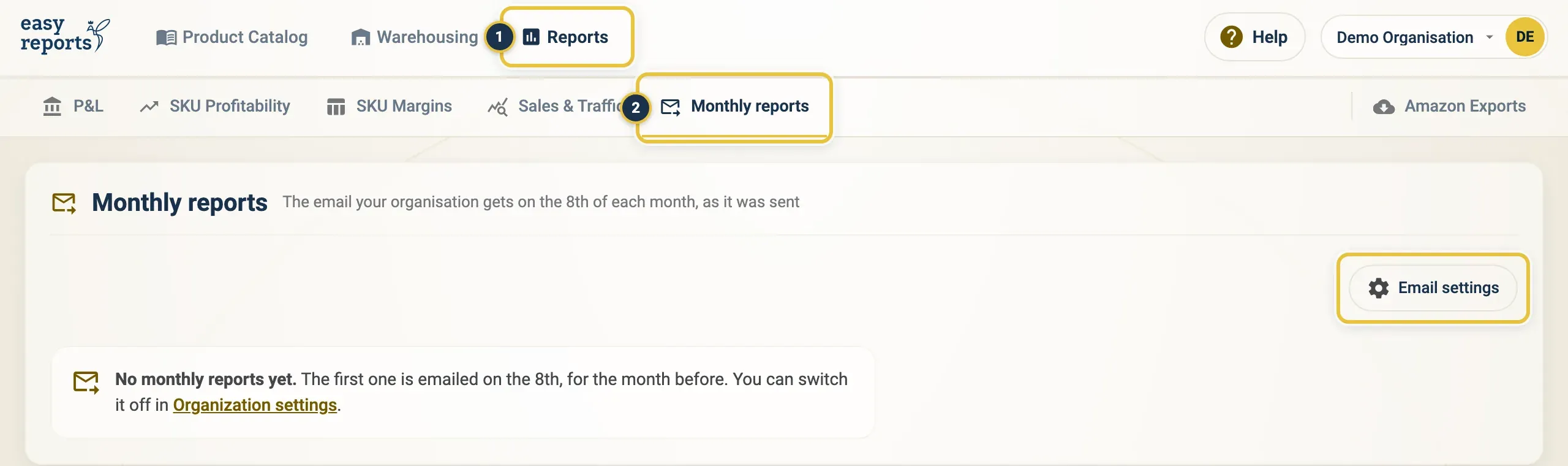
Reports (1), then Monthly reports (2). Email settings is on the right. With no reports yet, the page says so.
Once your organisation has reports, the page shows the Month filter at the top and, below it, the report for that month exactly as the email looked: a header with your organisation name and the month, then The month in numbers as a row of figures with the change from the month before, followed by the sections below.
What is in the monthly report on Lite and Pro
Section titled “What is in the monthly report on Lite and Pro”With your Amazon account connected, the Monthly report covers:
- The month in numbers: ordered sales and units, with the change from the month before. On Pro it adds operating profit and margin; on Lite it adds ad spend and conversion.
- What stood out and Next steps: short points, each with a link to the page where you can act.
- Sales per market: sales, units, sessions and conversion per country.
- What moved your margin (Pro): which costs pushed your margin up or down.
- Your best and weakest SKUs, and Advertising (Sponsored Products): spend, ad sales, ACoS, ROAS and TACoS.
- Your FreightNI warehouse: stock, what is waiting on you, low stock, open tasks and invoices.
If Amazon has not settled the whole month yet, profit figures are marked provisional. Open the P&L later for final numbers.
What is in the monthly report on Free
Section titled “What is in the monthly report on Free”On the Free plan, the report is a Warehouse update: your stock at the FreightNI warehouse, what needs your action, low stock, open tasks and invoices, and what happened at the warehouse last month. To add sales, SKUs, ads and profit, upgrade to Lite or Pro. See Your subscription and plans.
Turn the monthly report email off for yourself
Section titled “Turn the monthly report email off for yourself”- On the Monthly reports page, click Email settings. Or open the user menu and choose Organization Settings.
- Under Monthly report email, switch off Email me the monthly report.
This only affects you. Other people in your organisation still get the email, and past reports stay on the Monthly reports page. Switch it back on at any time.
Good to know
Section titled “Good to know”- The email arrives on the 8th, for the previous calendar month. The wait gives Amazon time to settle advertising numbers.
- The subject reads “your organisation: monthly report, month”.
- Warehouse figures show the situation on the day the report was built, not today.
- If the switch is greyed out with “The monthly report is off for this organisation.”, the report is turned off for the whole organisation. Contact support if you want it back. See Getting help.
- No reports yet? The first one is emailed on the 8th after you join.
- Monthly reports are per organisation. If you have more than one, select the right one first. See Organisations, teammates and switching.