

SKU Margins
SKU Margins shows what you actually keep on each product, in every Amazon country. Each row breaks the selling price down into VAT, landed cost and Amazon fees, ending in your gross profit. It is part of the Lite and Pro plans.
Read the SKU Margins table
Section titled “Read the SKU Margins table”- Click Reports in the top menu, then SKU Margins.
- Each row is one product in one country. Read it from left to right:
- Sales / Ex VAT: the selling price including VAT, with the price excluding VAT underneath.
- VAT / %: the VAT taken from the price.
- LC / %: the landed cost.
- Ref · FBA / %: Amazon’s referral fee and FBA fee.
- COGS / % and GP / GP%: your cost of goods and the gross profit each sale leaves.
- Check the colour of the gross profit: green is 25% or more, orange is 15% to 25%, red is below 15%.
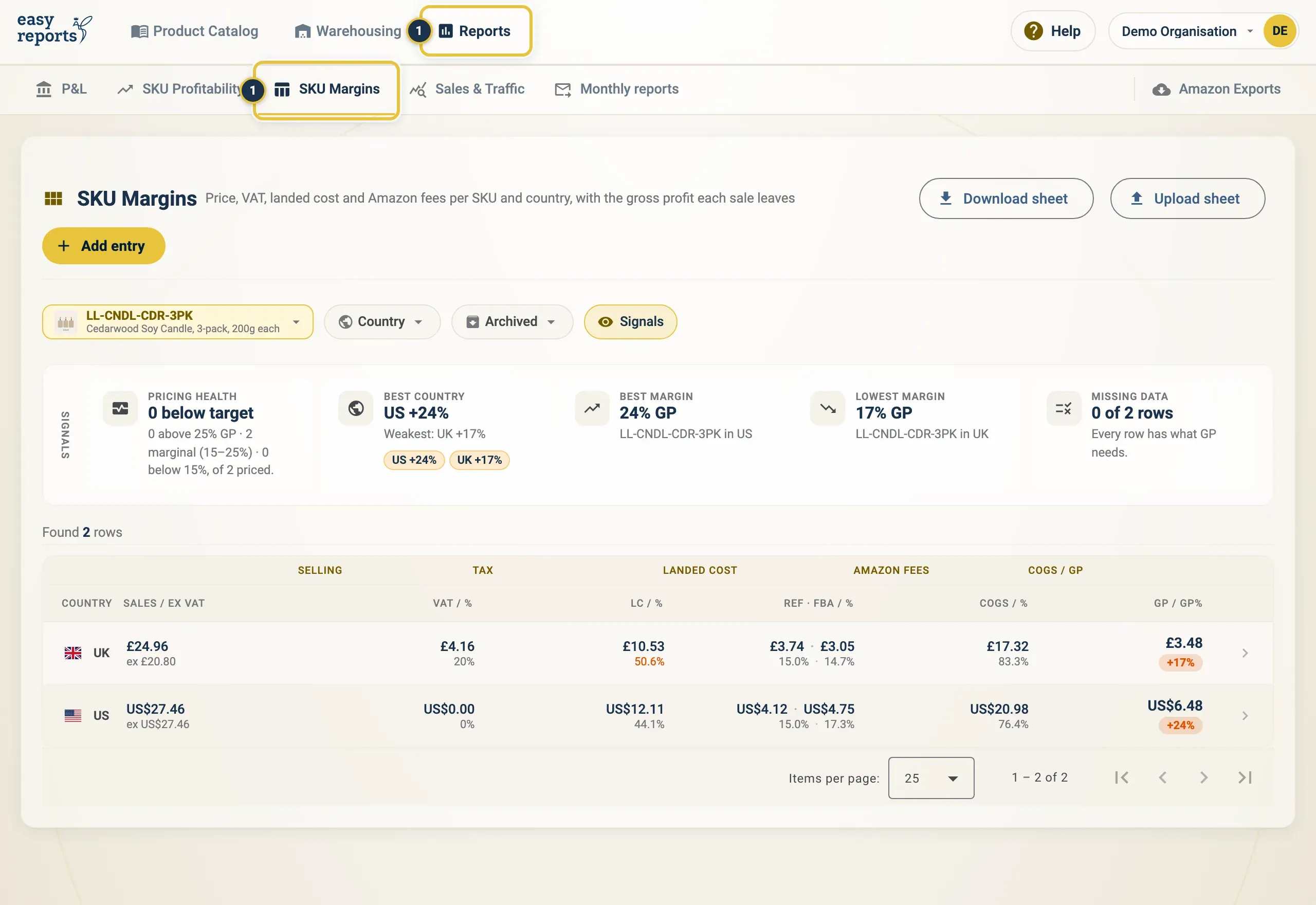
Reports, then SKU Margins (1). Each row is one product in one country, ending in GP and GP%.
Use the SKU Margins signals
Section titled “Use the SKU Margins signals”The Signals strip at the top of SKU Margins sums up your pricing:
- Pricing health counts the rows below target (under 15% GP).
- Best country shows each country’s average margin. Click a country to show only its rows; click it again to remove the filter.
- Best margin and Lowest margin name the strongest and weakest product.
- Missing data counts rows with no price, landed cost or FBA fee, so no gross profit can be worked out.

The Signals strip. Click a country chip under Best country, such as US +24%, to show only its rows.
Click a country under Best country to filter on it, click again to clear, then hide and show the Signals strip.
Filter SKU Margins by product or country
Section titled “Filter SKU Margins by product or country”- Use the product chip to show one product.
- Use the Country chip to pick one or more countries.
- Use the Archived chip to include archived products.
- Click Clear all to remove the filters.

The product chip (1), Country (2) and Archived (3). Add entry, Download sheet and Upload sheet sit at the top.
See where the money goes for one product
Section titled “See where the money goes for one product”- In the SKU Margins table, click a row.
- The product opens on its Margins tab, with that country expanded. The Where the money goes bar shows VAT, landed cost, referral fee, FBA fee and gross profit.
- Fill in any missing price or cost, and save. See Set up your costs for what each field means.
Add a margin entry by hand
Section titled “Add a margin entry by hand”Use Add entry when a product does not have a row yet.
- Click Add entry at the top of SKU Margins, under the title.
- In Add PM Entry, search for the product and select it.
- The product opens on its Margins tab. Fill in the price and costs for the country, and save.
Update many prices with the margin sheet
Section titled “Update many prices with the margin sheet”Pricing lots of products? Use the margin sheet.
- Click Download sheet and choose Excel (.xlsx) or CSV.
- Fill in the sheet. Rows match on SKU and country. A blank cell keeps the stored value. You can delete rows or columns you don’t need, except SKU and Country.
- Click Upload sheet and drop the file in Upload margin sheet, or click to browse.
- Check the preview: how many rows are created, updated, unchanged or skipped. Use Show changes only to see just the changes.
- Click Apply to save the changes.
Good to know
Section titled “Good to know”- Landed costs in the sheet are in each row’s Currency. To enter one in another currency, fill in the Landed cost currency column and leave Currency as it is. It is converted at the latest ECB rate, shown in the preview before anything is saved.
- Skipped rows in an upload are left untouched; everything else is applied.
- When there is no referral fee yet, the gross profit uses a default referral rate of 15%.
- SKUs with no landed cost are left out of the Profit and Loss report, so fill in landed costs here first.