

Fix a shipment with an Issue at Amazon
Sometimes Amazon cancels or deletes a shipment after your cartons have left the FreightNI China Hub. EasyReports then marks the replenishment Issue At Amazon and emails you. Use Fix shipment to tell EasyReports and FreightNI what you did about it in Seller Central.
Find a replenishment with an Issue at Amazon
Section titled “Find a replenishment with an Issue at Amazon”- Go to Warehousing > Replenishments.
- Use the Status filter: tick Issue At Amazon and click Apply. Or open the link in the email.
- A Fix shipment button shows under the status. Inside the replenishment you see “Amazon no longer has this shipment.” with the same button.
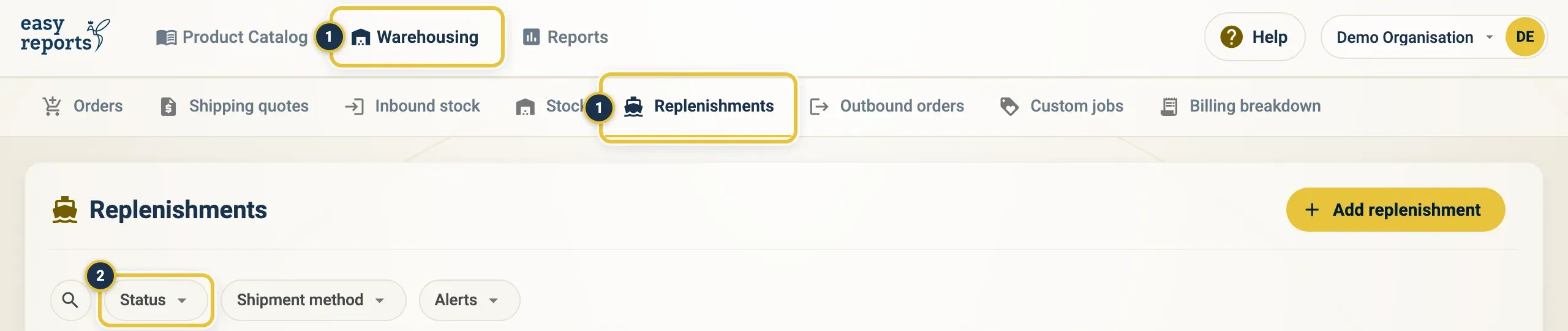
Warehousing, then Replenishments (1), then the Status filter (2).
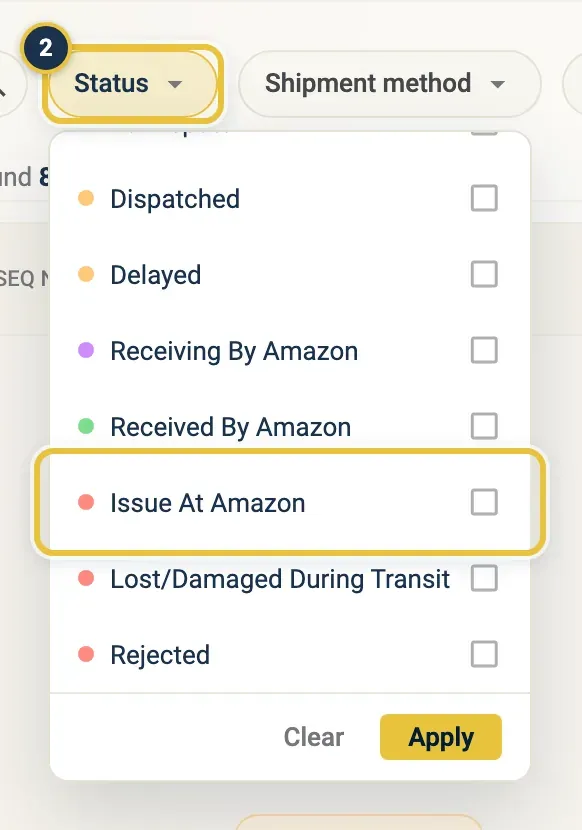
Tick Issue At Amazon in the Status filter (2), then click Apply.
In the list, the row shows the status Issue At Amazon with a Fix shipment button (a spanner icon) under it. The Fix shipment dialog has two choices: I recreated it in Seller Central, with a New FBA shipment ID field, and The units are lost, I opened a case with Amazon, with a Note (optional) field. Cancel and the confirm button (Update shipment or Tell FreightNI) are at the bottom.
Fix shipment: you recreated it in Seller Central
Section titled “Fix shipment: you recreated it in Seller Central”If you created a new shipment in Seller Central for the same cartons:
- Click Fix shipment. The dialog shows the cancelled shipment and when the goods left the warehouse.
- Choose I recreated it in Seller Central.
- Enter the New FBA shipment ID. It starts with FBA, then letters and digits only.
- Click Update shipment.
EasyReports checks the new shipment with Amazon in your account. If it is valid, the replenishment goes back to Dispatched under the new ID, and you see “Shipment updated. We’ll track … from now on.” Every other replenishment on the same cancelled shipment moves with it.
If some products are not in the new shipment, the dialog says which ones are still flagged. Enter the shipment ID that holds them and click Update shipment again.
Fix shipment: the units are lost and you opened a case
Section titled “Fix shipment: the units are lost and you opened a case”If the units are lost and you opened a case with Amazon:
- Click Fix shipment.
- Choose The units are lost, I opened a case with Amazon.
- Add a Note (optional), for example your Amazon case ID. The note can be up to 1,000 characters.
- Click Tell FreightNI.
FreightNI is told and will close the record. The status does not change straight away: the warehouse team decides. The list shows a Case reported chip with the date. The Fix shipment button is hidden for 24 hours after you report a case, then shows again.
Why Fix shipment says no
Section titled “Why Fix shipment says no”The Fix shipment dialog stays open and explains the problem when it can’t accept your answer. Common reasons:
- The ID is the shipment Amazon already cancelled. Enter the ID of the new shipment.
- Amazon does not know the shipment in your account, or reports it as cancelled. Check the ID in Seller Central.
- The new shipment goes to a different country than the replenishment.
- The new shipment doesn’t contain the SKUs. Find the shipment that holds them, or tell FreightNI.
- “We could not check the shipment with Amazon right now.” Check that Amazon is connected, then try again.
Good to know
Section titled “Good to know”- Checking a recreated shipment needs your Amazon connection. See Connect Amazon.
- If Amazon expects a different number of units than you sent, EasyReports shows a warning but still updates the shipment.
- If the warehouse team already updated the replenishment, you see “This shipment was already updated.” and nothing else is needed.
- For a shipment going somewhere other than an Amazon fulfilment centre, contact FreightNI.