

Profit and Loss report
The Profit and Loss report (P&L in the Reports menu) shows how your Amazon business did in one month, from net revenue down to operating profit. It is built from your Amazon settlements, landed costs, PPC, storage and your own operating expenses. It is part of the Pro plan.
Open the P&L for a month
Section titled “Open the P&L for a month”- Click Reports in the top menu, then P&L.
- Click the month chip (it shows the current month) and pick a month.
- Use the Country chip to include only some countries, if you want.
The Signals strip at the top gives you the headline numbers: Net revenue, Contribution before PPC, Marketplace contribution, Operating profit and the amount Excluded from P&L. The chart shows where the money goes, with Net revenue, Amazon fees and Op. margin above it. Use the buttons beside the chart to switch between Share of net revenue, Waterfall (from net revenue to operating profit) and Split by country. Click Signals or Chart in the filter row to hide or show them.
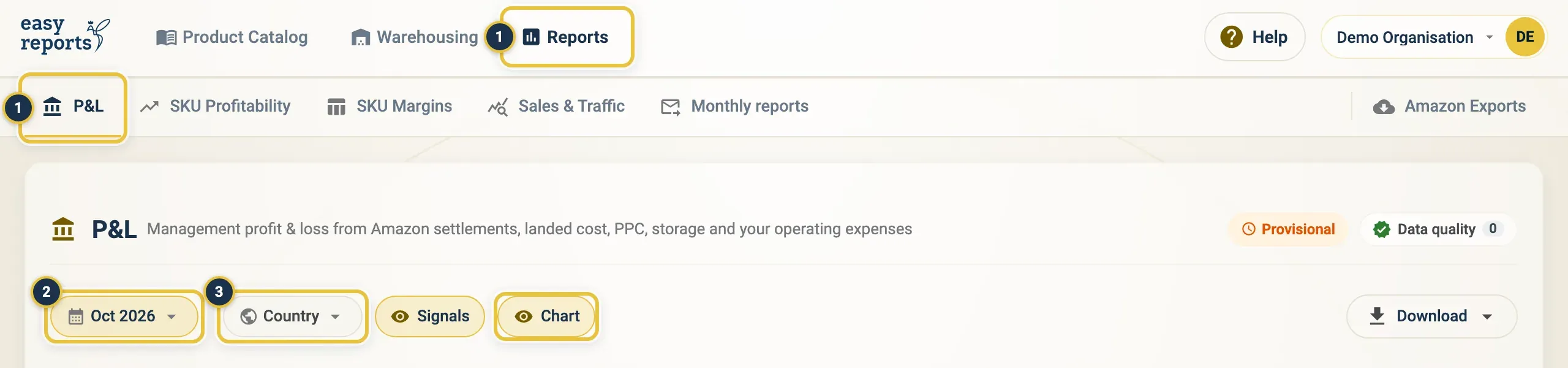
Reports, then P&L (1), the month chip (2) and the Country chip (3).
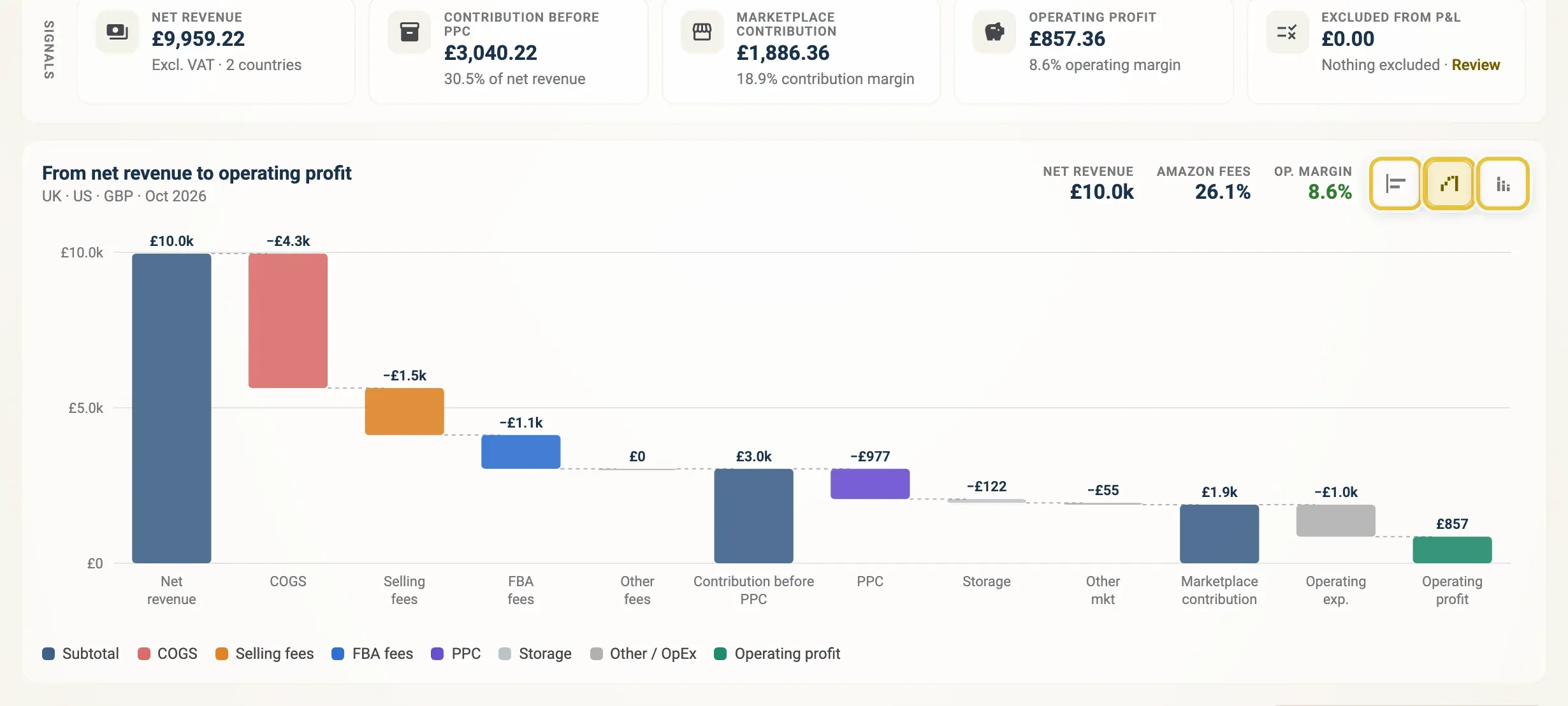
The Signals strip, and the chart with its three view buttons on the right.
Read the P&L statement
Section titled “Read the P&L statement”- Scroll down to the statement below the chart.
- Click a subtotal, such as net revenue, Amazon fees or the cost of goods sold, to open the lines behind it.
- Use Expand all or Collapse all to open or close every group at once.
Each line shows its amount and its share of net revenue, with a comment on what it includes. Costs show as negatives.
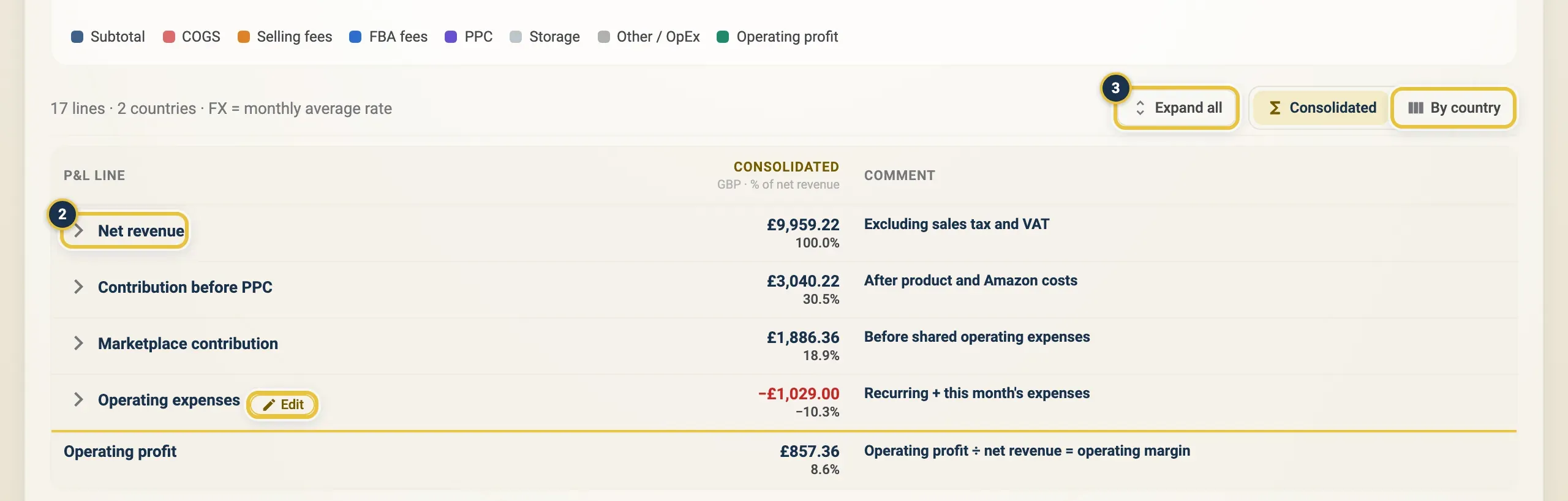
Click a subtotal such as Net revenue (2) to open it. Expand all (3) opens every group. By country and Edit are outlined.
Switch the chart view, hide the chart, expand the statement and show it by country.
See the P&L by country
Section titled “See the P&L by country”- Above the statement, click By country. You get a column per country.
- Choose Local currency to see each country in its own currency, or click your reporting currency (for example GBP) to convert every column.
- Click Consolidated to go back to one total column.
In your reporting currency, the country columns add up to the consolidated total. Amounts are converted at the monthly average rate. You set the reporting currency in Organization settings.
Add operating expenses to the P&L
Section titled “Add operating expenses to the P&L”Your own costs, such as staff and software, go in Operating expenses.
- In the statement, click Edit next to Operating expenses.
- To add a cost for this month only, click Add expense for (the month), pick a Category, enter the Amount and click Add.
- To add a cost that comes back every month, open the Recurring tab and click Add recurring expense. Recurring expenses fill every month by themselves.
- To change a recurring expense for one month, edit it and choose Only that month, or From that month onwards.
- Close the panel. Operating profit updates straight away.
Operating expenses belong to the whole business, so they only appear in the consolidated column.
Fix missing data in the P&L
Section titled “Fix missing data in the P&L”If something is left out, the P&L tells you.
- Look at the Data quality chip at the top. The number is how many notes there are.
- Click it to open the Excluded & data quality panel. Excluded SKUs lists the SKUs left out; Data notes explains what is missing or provisional.
- If a SKU has no landed cost, its sales are left out of the report, and the Excluded from P&L signal shows how much. Add the landed cost in SKU Margins, and those sales move into the report.
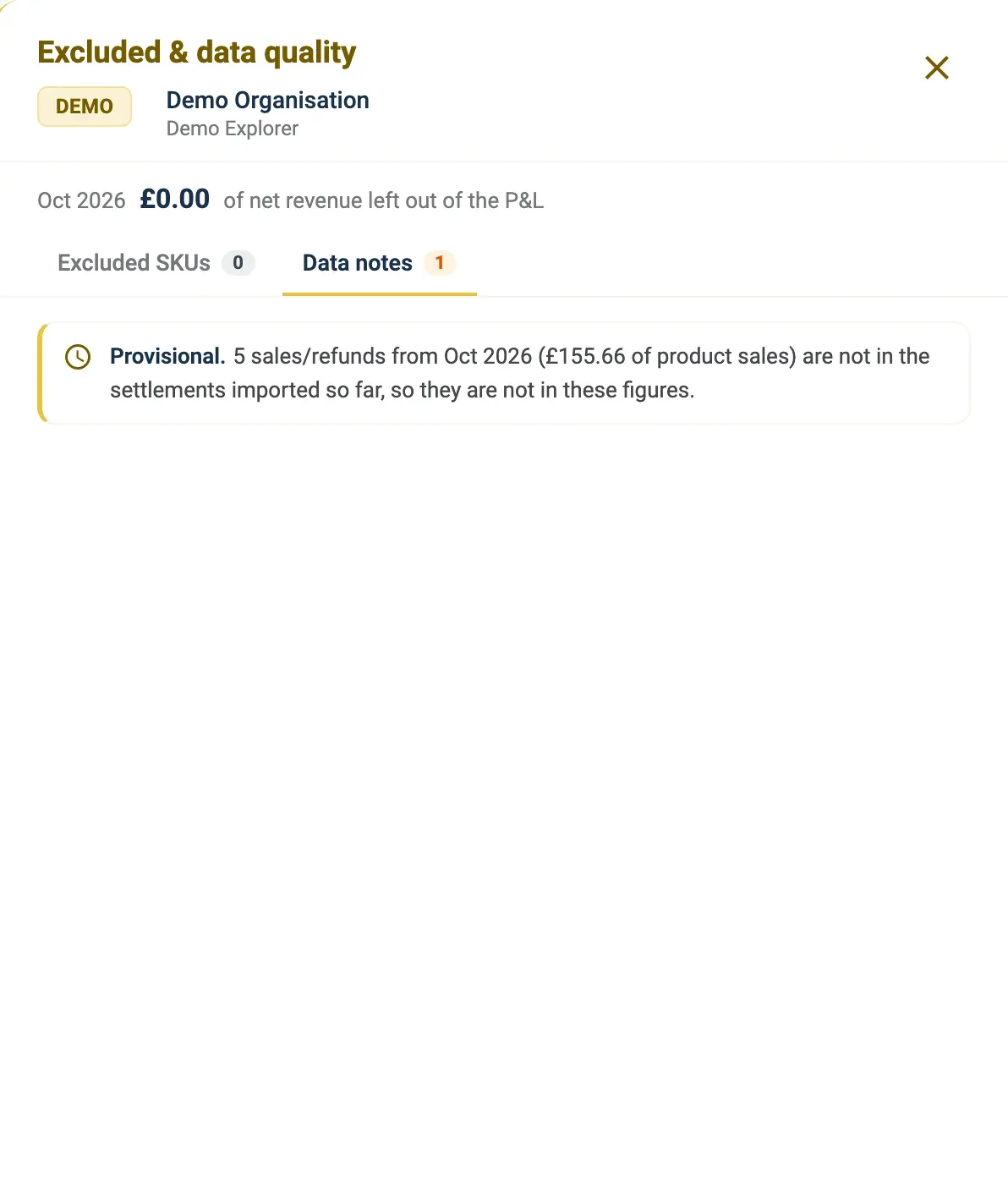
The Excluded & data quality panel, here with a note that the month is provisional.
Download the P&L
Section titled “Download the P&L”- Click Download.
- Choose Excel (.xlsx) or CSV.
Good to know
Section titled “Good to know”- Amazon settles every two weeks, and settlements are imported after the month ends. The current month fills in during the next month.
- A Provisional chip means the month is not complete yet, for example because some sales are not in a settlement yet.
- The P&L works per organisation. If you see a message asking you to pick one, choose a single organisation from the top-right menu.
- See Set up your costs to get landed costs right from the start.