

Set up your costs
Your margin reports are only as good as the costs behind them. Until a product has its costs, SKU Margins shows missing data, and the Amazon referral fee falls back to a 15% default. This page shows how to get your costs in.
Bring in prices and fees from Amazon
Section titled “Bring in prices and fees from Amazon”Start in the Product Catalog. With Amazon connected, Auto-populate brings in a listing’s price, FBA fee and referral rate.
- In the Product Catalog, open a product and click Auto-populate at the top of its panel.
- Click Save.
- Check the result on the product’s Margins tab.
For many products at once, use the margin sheet below, or ask FreightNI to import your whole Amazon catalogue.
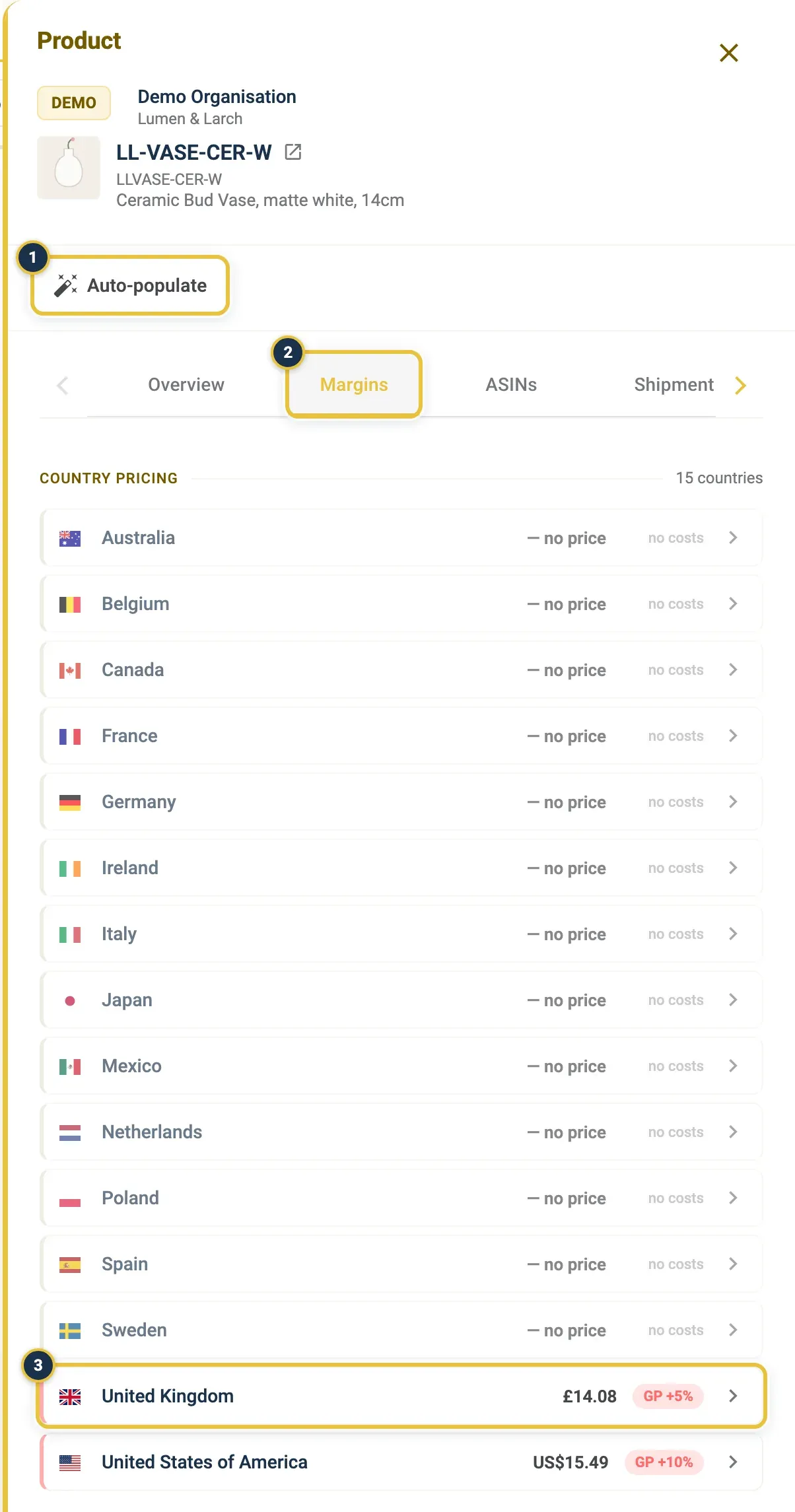
Auto-populate in the product panel (1), the Margins tab (2), and a country to click (3).
See Product Catalog for Auto-populate step by step.
Read a product’s costs on the Margins tab
Section titled “Read a product’s costs on the Margins tab”- In the Product Catalog, open a product.
- Open the Margins tab. It lists every country under Country pricing, with its gross profit, or no costs if something is missing.
- Click a country to see the Cost-to-margin breakdown: Where the money goes splits the sales price into VAT, landed cost, referral fee, FBA fee and gross profit (GP).
If costs are missing, the breakdown says Add Landed Cost & FBA to see GP.
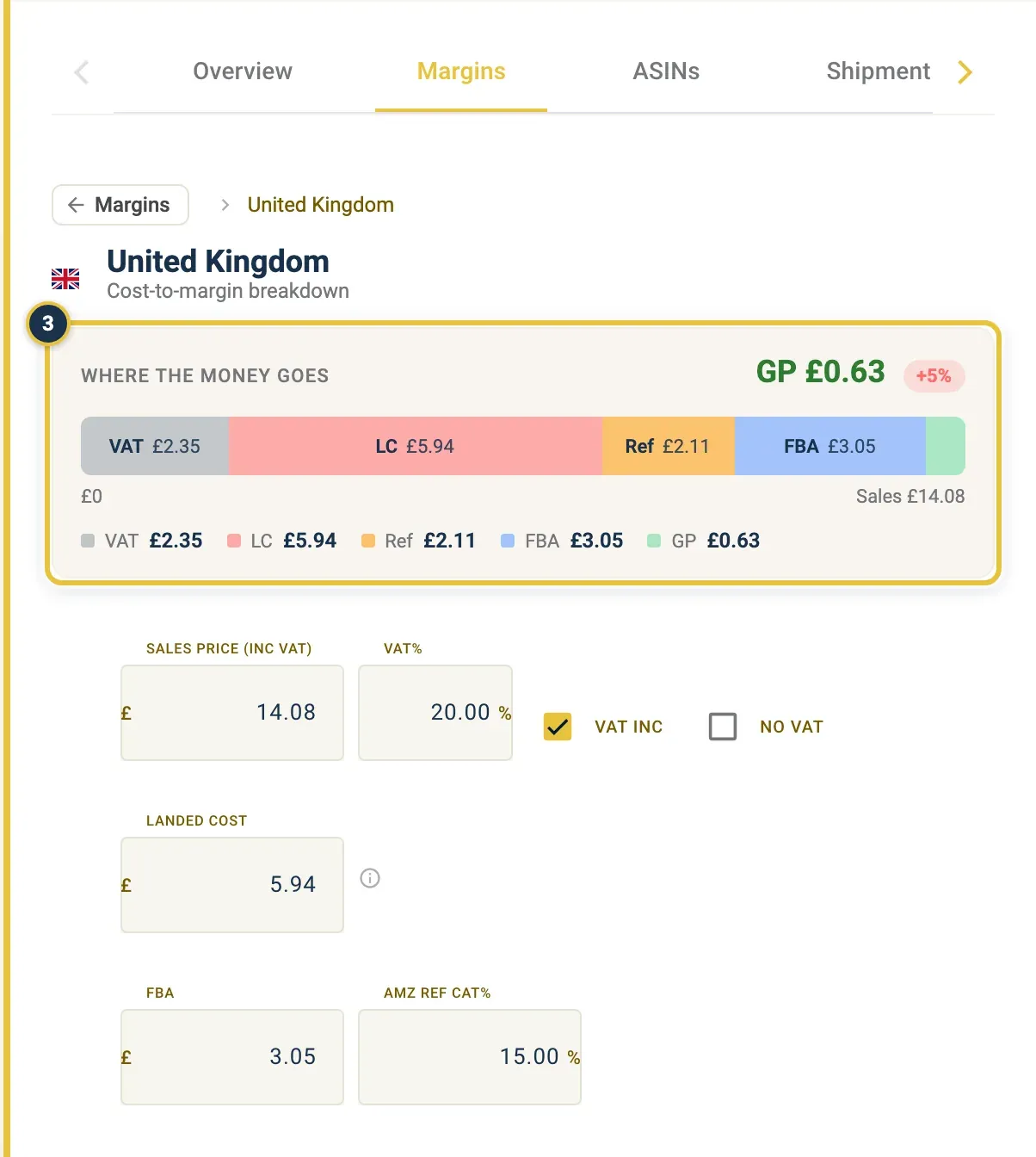
Where the money goes (3): VAT, landed cost (LC), referral fee (Ref), FBA fee and gross profit (GP).
How landed cost is worked out
Section titled “How landed cost is worked out”Landed cost is the trade price, plus sea freight per carton divided by the units in the carton, plus media assets spread over the MOQ, converted at the daily exchange rate. Sea freight per carton is on the product’s Shipment Costs tab.
FreightNI holds the trade price and shipment costs for each product, so you can see them but not change them. Ask FreightNI if one looks wrong.
Price many products at once with the margin sheet
Section titled “Price many products at once with the margin sheet”- Go to Reports › SKU Margins.
- Click Download sheet and pick Excel (.xlsx) or CSV.
- Fill in the sheet: Sales price, VAT %, VAT inclusive, Landed cost, FBA fee and Referral %. Each row is one product in one country.
- If your landed cost is in a different currency from the row’s Currency, put that currency in Landed cost currency (for example GBP). It is converted at the latest ECB rate when you upload.
- Back on SKU Margins, click Upload sheet and drop in your file.
- Check the preview: how many rows are created, updated, unchanged or skipped, and why.
- Click Apply to save the changes.
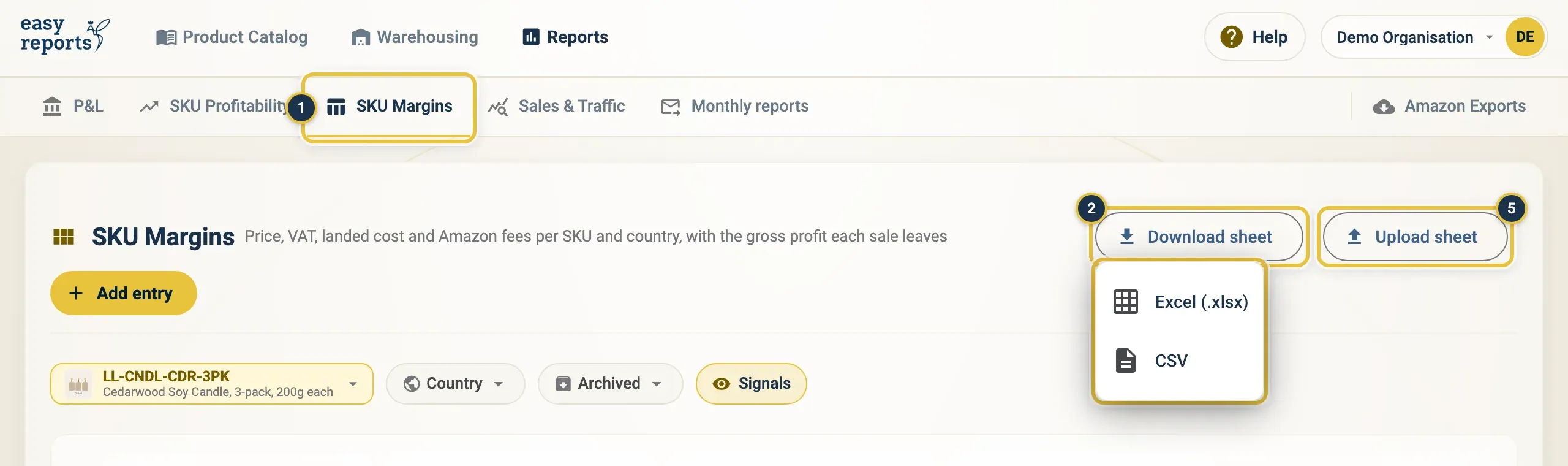
SKU Margins under Reports (1), Download sheet with its Excel and CSV choices (2), and Upload sheet (5).
Blank cells are left alone, so you only need to fill in what you want to change.
After you drop in the file, the upload dialog shows a preview before anything is saved: the number of rows that will be created, updated, unchanged and skipped, with the reason for each skipped row. Nothing changes until you click Apply.
Check the result
Section titled “Check the result”Back on SKU Margins, every country now shows its gross profit, and missing data drops to zero. SKU Profitability uses the same landed cost, so it adds up too. See SKU Margins and SKU Profitability.
Good to know
Section titled “Good to know”- Skipped rows in an upload are left untouched; everything else is applied.
- On the product’s Margins tab, prices and costs are read-only for you. Change them through the margin sheet, or with Add entry on SKU Margins.
- SKU Margins needs Lite or Pro. See Your subscription and plans.