

Inbound stock
Goods in production for the FreightNI China Hub? Tell FreightNI with Inbound stock. When the goods arrive, the warehouse team counts the cartons and they appear in your Stock.
Record inbound stock
Section titled “Record inbound stock”- Click Warehousing in the top menu, then Inbound stock.
- Click Add inbound stock.
- On the Request tab, search for and pick the SKU.
- Choose the Origin/Supplier and Destination addresses.
- Choose the Order type (Product order or Product reorder) and the Product type: Complete Product (Main & Bonus), Main Product Only or Bonus Item Only.
- Enter the Number cartons and the Expected end of production date.
- Choose the Dispatch type:
- Delivery: your supplier delivers the goods to FreightNI.
- Collection: FreightNI collects the goods from your supplier. This service is charged.
- In Additional Jobs, tell the warehouse about anything to do when the goods arrive, such as bundling or relabelling.
- Click Submit.
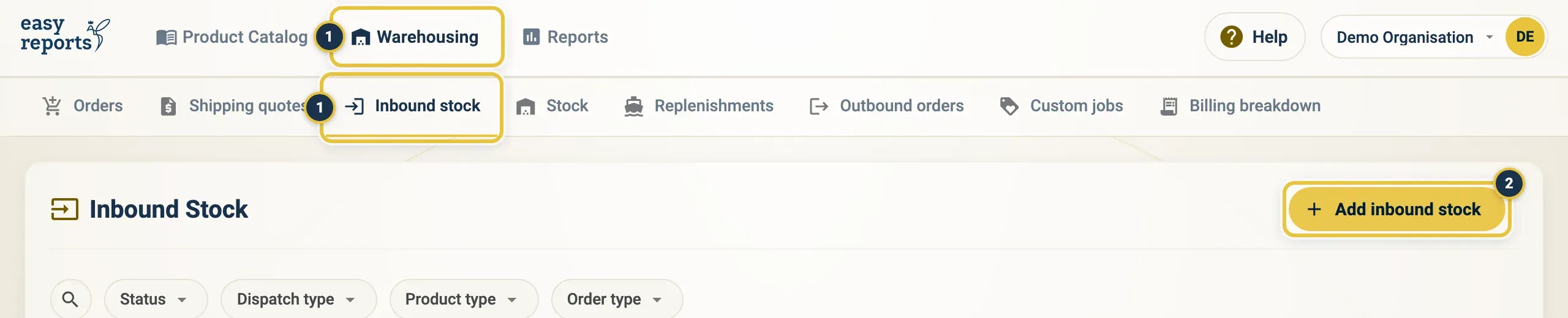
Warehousing, then Inbound stock (1), then Add inbound stock (2).
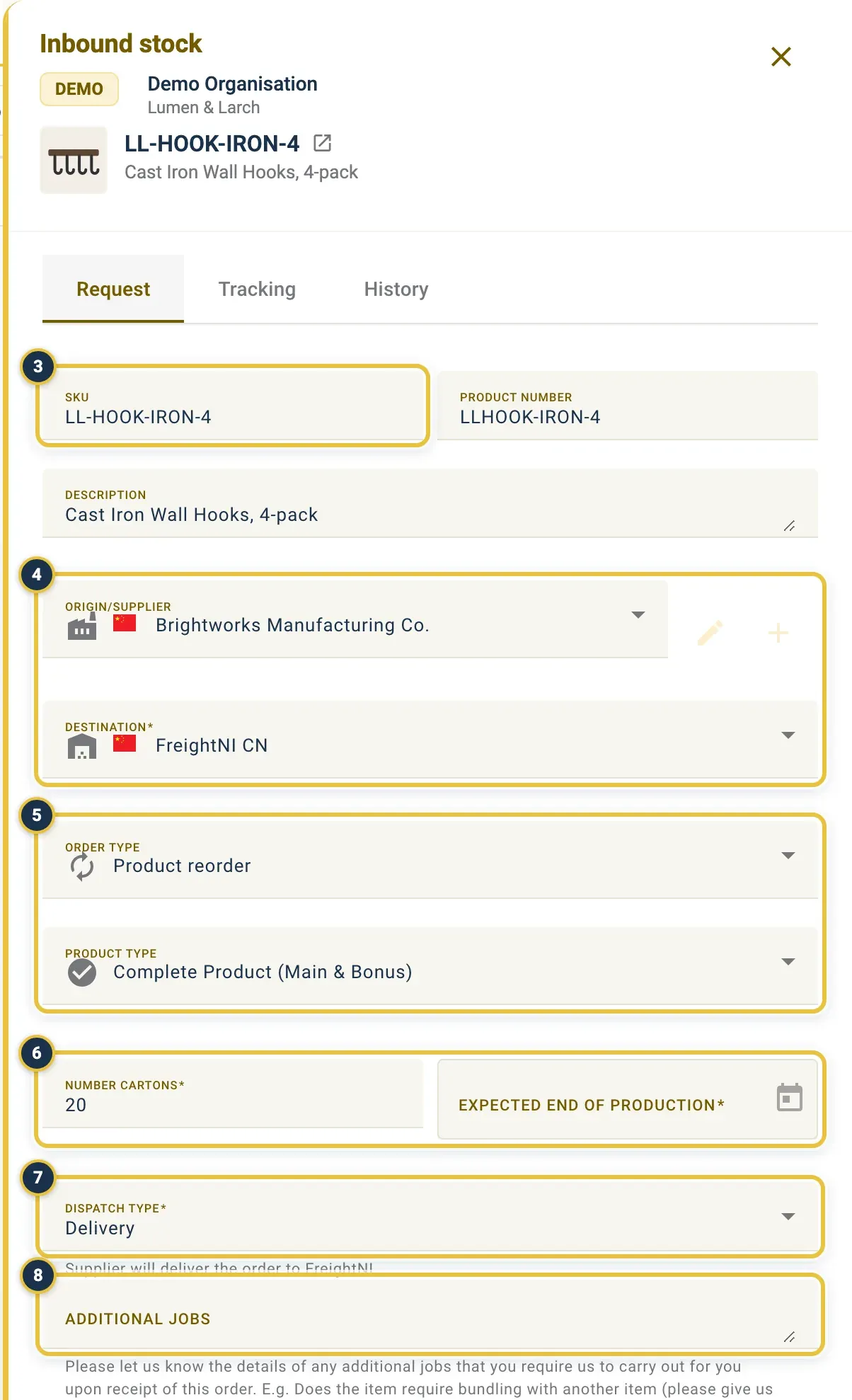
The SKU (3), Origin/Supplier and Destination (4), Order type and Product type (5), Number cartons and Expected end of production (6), Dispatch type (7) and Additional Jobs (8). This is a request that was already submitted, so the fields are locked; a new one has a Submit button at the bottom.
Follow inbound stock to the warehouse
Section titled “Follow inbound stock to the warehouse”- On the Inbound stock page, find your inbound. Filter by Status, Dispatch type, Product type or Order type, or search.
- The Route & progress column shows how far it has got: Requested → Dispatched → Arrived.
- The Cartons column shows Expected | Actual: the cartons you entered and the cartons counted on arrival.
- Click the inbound to open it. The Tracking tab shows the status and dates, and the History tab shows every change.
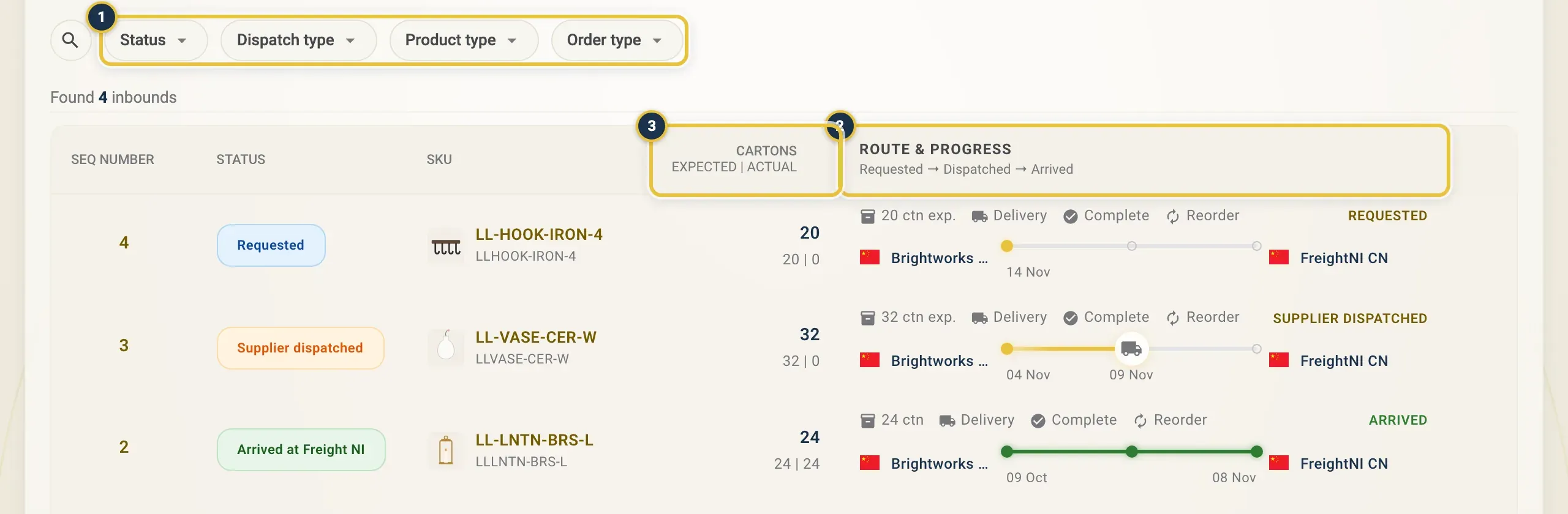
The filters (1), Route & progress (2) and Cartons expected | actual (3).
Inbound stock moves through these statuses: Requested, Quoted, Payment done, Supplier dispatched, Arrived at Freight NI, Ready for collection, Closed and Rejected. The warehouse team updates them.
Check the cartons counted on arrival of inbound stock
Section titled “Check the cartons counted on arrival of inbound stock”When your goods arrive, you get an email about the inbound. It shows:
- Cartons expected: the number you entered.
- Cartons counted in: what the warehouse actually counted. Before arrival it says “Not yet received”.
- Difference: shown in red when the count is short or over.
The counted number is what goes into your Stock, and it is what your storage is billed on.
Good to know
Section titled “Good to know”- Once you submit inbound stock, you cannot change it. Contact the warehouse team if something needs to change.
- Cartons on their way show as Incoming on the Stock page, but you can only send them once they have arrived and been counted.
- Want FreightNI to buy the goods for you? Use Orders instead.