

Product Catalog
The Product Catalog holds every product you store with FreightNI or sell on Amazon. Its carton details set your storage cost and how your stock is matched, so it is worth getting right first. Open it from Product Catalog in the top menu.
The Getting started video covers adding your first products to the Product Catalog.
Add a product to the Product Catalog
Section titled “Add a product to the Product Catalog”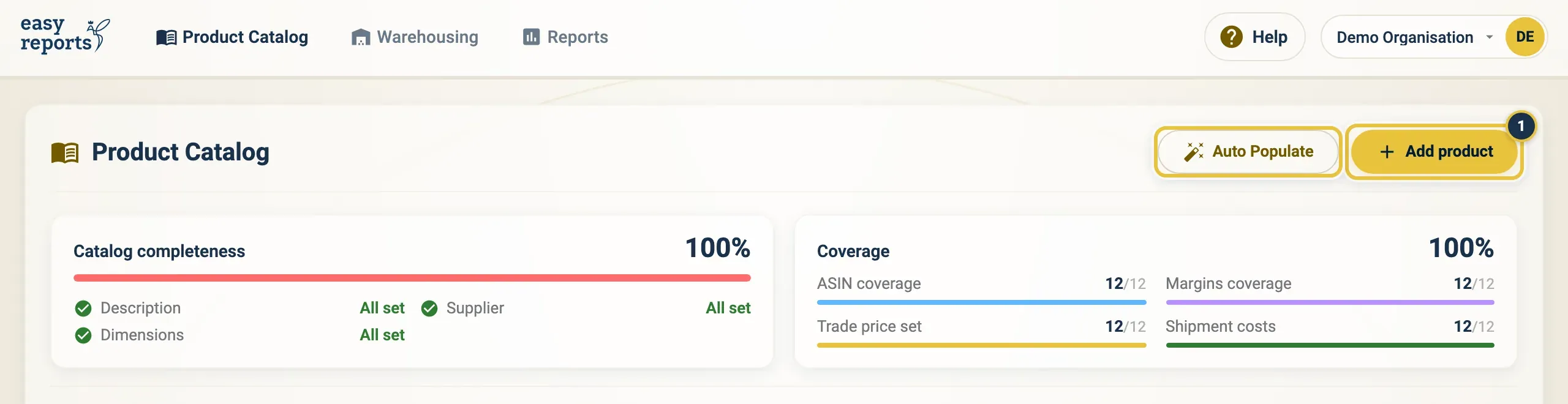
Add product (1).
- In the Product Catalog, click Add product.
- On the Overview tab, enter the SKU, EAN and Description, and the Product Number if you use one.
- Under Cartons dimensions, enter Units per Carton, Carton Weight (kg), and Carton Length, Carton Width and Carton Height (cm). Units per carton must be a whole number.
- Optionally fill in the Unit dimensions and Origin/Supplier.
- Check every detail, then click Create.
If the carton looks lighter or smaller than the units inside it, a warning icon appears next to the carton details. Check your figures before you save.
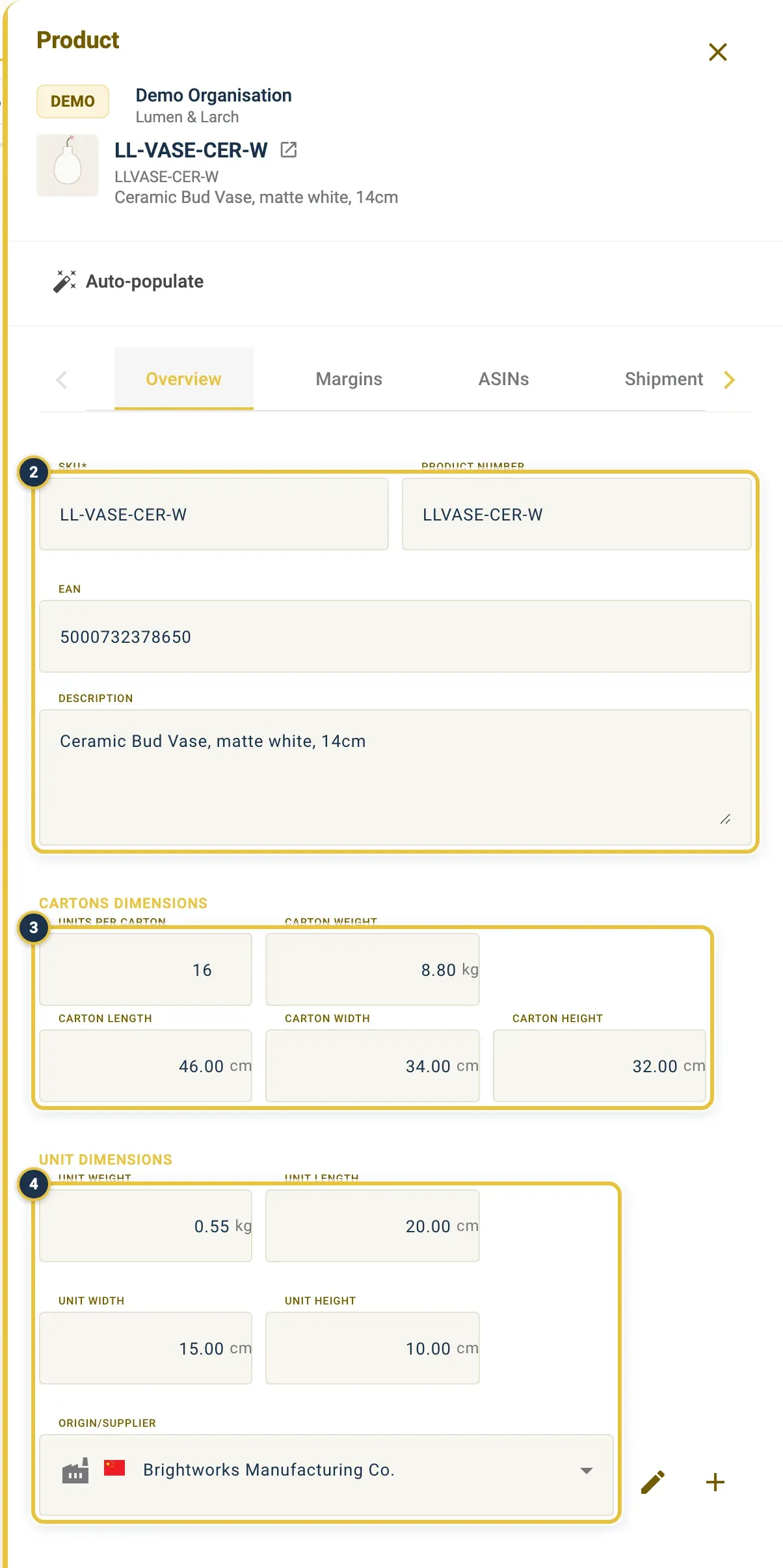
The Overview tab: SKU, EAN and Description (2), the carton dimensions (3), and the unit dimensions and Origin/Supplier (4). This is a saved product, so it shows Save instead of Create.
Open a product and step through its tabs: Overview, Margins, ASINs, Shipment Costs, Movements and History.
Fill in a product from Amazon with Auto-populate (Lite and Pro)
Section titled “Fill in a product from Amazon with Auto-populate (Lite and Pro)”With Amazon connected on Lite or Pro, EasyReports can fill in a product’s details from your Amazon listing, so you don’t have to type them.
- Add the product with its SKU (see above) and click Create. The SKU must match your seller SKU on Amazon.
- Open the product from the Product Catalog.
- Click Auto-populate at the top of the product panel. EasyReports fills in what Amazon knows, such as the description, EAN and ASINs, and the price, FBA fee and referral rate, and shows “Auto-populated from Amazon listings.”
- Check the values, then click Save.
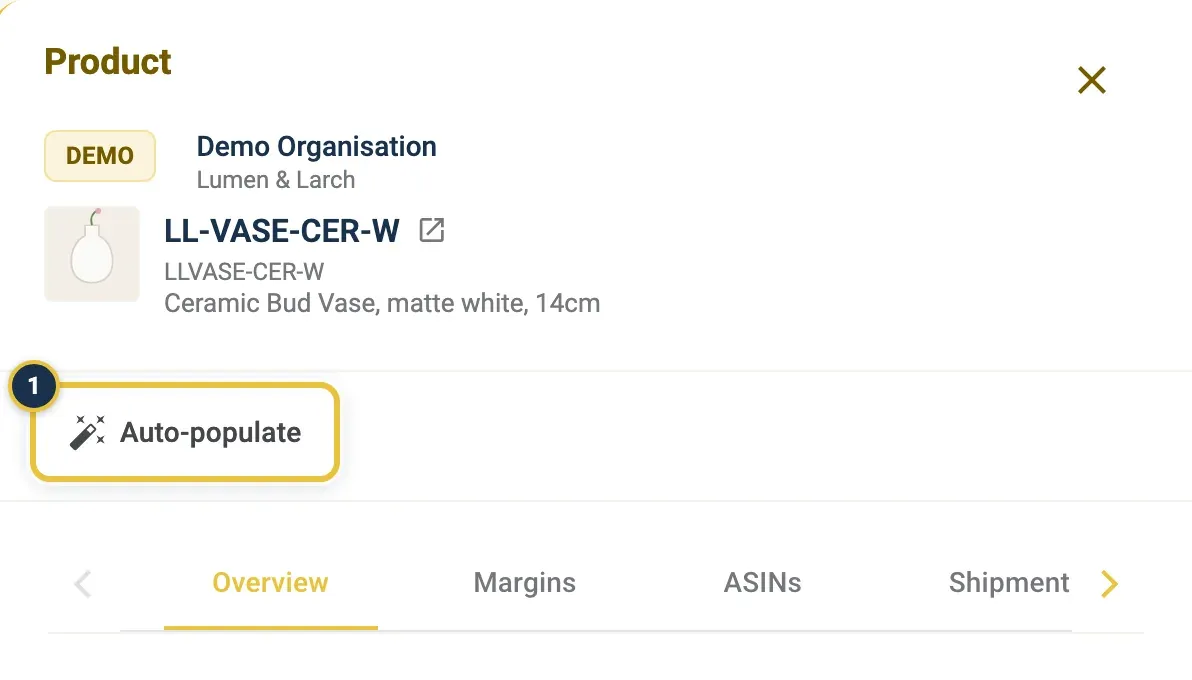
Auto-populate (1) sits at the top of the product panel. It is greyed out on the Free plan, and on a product that is not saved yet.
Amazon often doesn’t have your carton details, so check them and fill in any that are still empty.
Have many products on Amazon and want them all in at once? Ask FreightNI to import your whole Amazon catalogue for you (see Getting help). The Auto Populate button at the top of the Product Catalog is for the FreightNI team at the moment: when you click it, nothing happens.
Change a locked SKU or carton size
Section titled “Change a locked SKU or carton size”Once saved, the SKU, product number and the carton and unit measurements are locked, because they set your storage cost and how your stock is matched. A field that is still empty stays open, so you can complete it yourself. If a filled-in value needs changing, ask FreightNI.
Find a product’s ASINs and see it on Amazon
Section titled “Find a product’s ASINs and see it on Amazon”- In the Product Catalog, click the product.
- Open the ASINs tab to see and edit the ASIN for each marketplace.
- Click the product picture, or the View on Amazon icon in the panel header, to open the listing on Amazon.
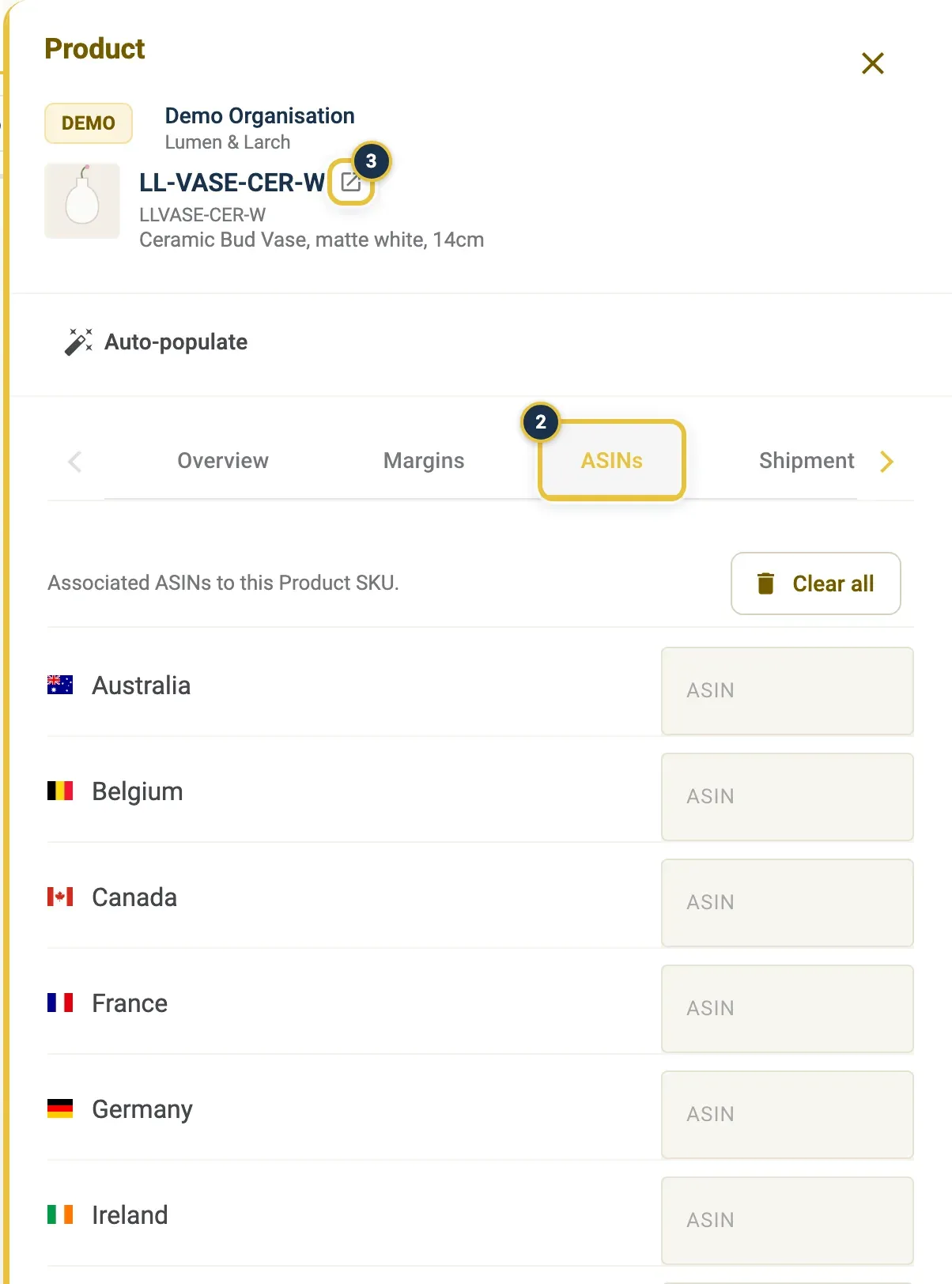
The ASINs tab (2) and the View on Amazon icon (3).
Product pictures come from Amazon on Lite and Pro. On Free, you see a placeholder box instead.
See what is holding or bringing in stock for a product
Section titled “See what is holding or bringing in stock for a product”Open the product and go to the Movements tab. It shows:
- Holding stock now: open replenishments and outbound orders that reserve cartons.
- In transit: inbound stock on its way to the warehouse.
- Completed: past records.
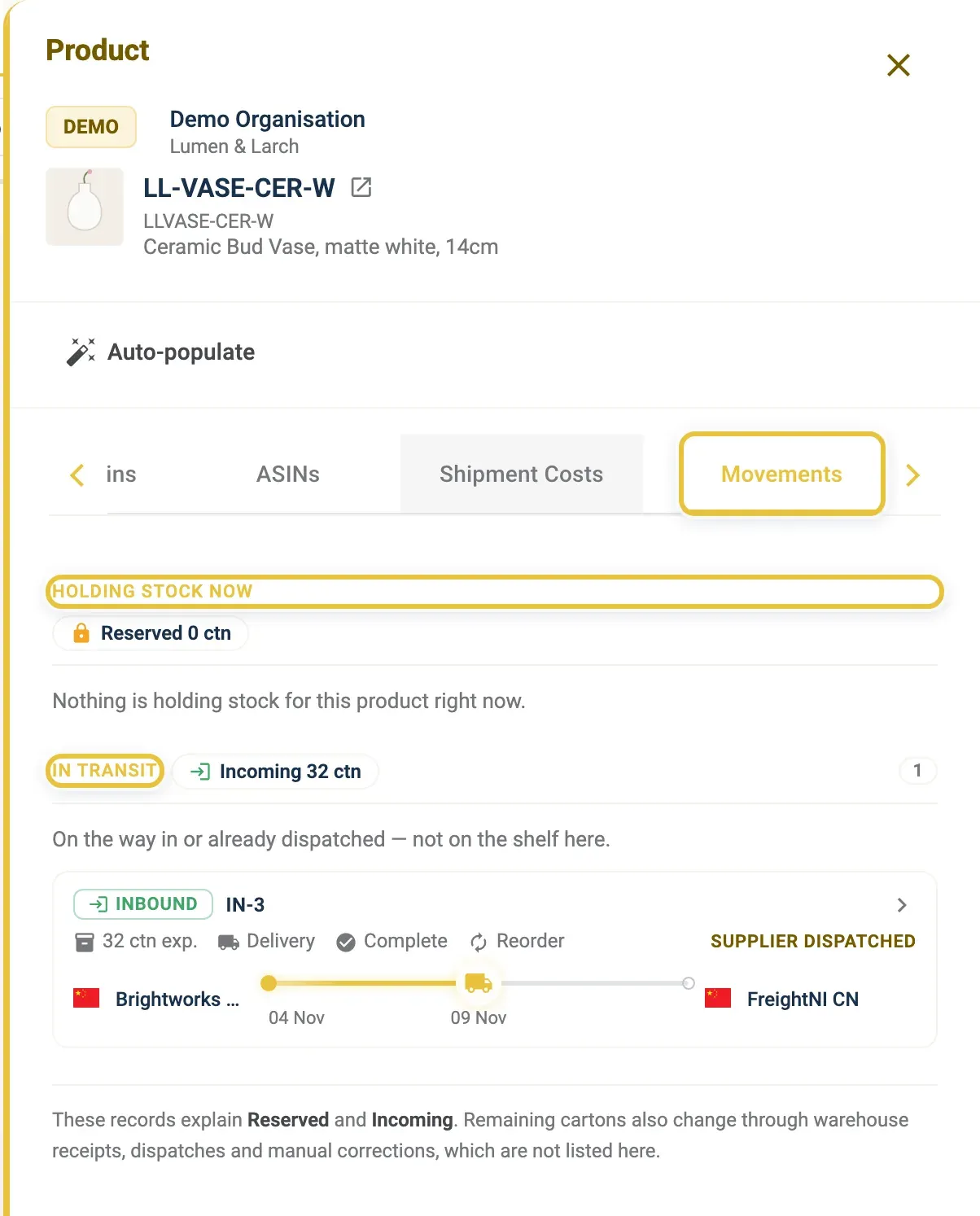
The Movements tab shows what is holding stock now and what is in transit.
Click a record to open it. The History tab shows who changed what on the product, and when.
Archive (hide) a product
Section titled “Archive (hide) a product”- Open the product.
- Click Archive at the bottom of the panel, and confirm.
An archived product is hidden from lists and pickers; existing records stay. To see archived products, use the Archived filter in the Product Catalog. To bring one back, open it and click Unarchive.
Good to know
Section titled “Good to know”- The Catalog completeness and Coverage cards at the top show what is still missing, such as descriptions, dimensions or ASINs.
- The Margins and Shipment Costs tabs are covered in Set up your costs.
- Already have stock with FreightNI? The warehouse team adds your carton counts. See Stock.