

Warehousing at a glance
Your FreightNI warehouse lives under Warehousing in the top menu. Each page there handles one step of your goods’ journey, from your supplier to Amazon.
Find the Warehousing pages
Section titled “Find the Warehousing pages”- Click Warehousing in the top menu.
- Pick a page from the sub-menu: Orders, Shipping quotes, Inbound stock, Stock, Replenishments, Outbound orders, Custom jobs or Billing breakdown. This manual covers Billing breakdown under Billing & plan: see Billing breakdown.
- For a shortcut, use the tiles on your Main Dashboard. They open your stock, invoices, replenishments, orders, shipping quotes, outbound orders and custom jobs.

Warehousing in the top menu (1), then a page from the row below it (2).
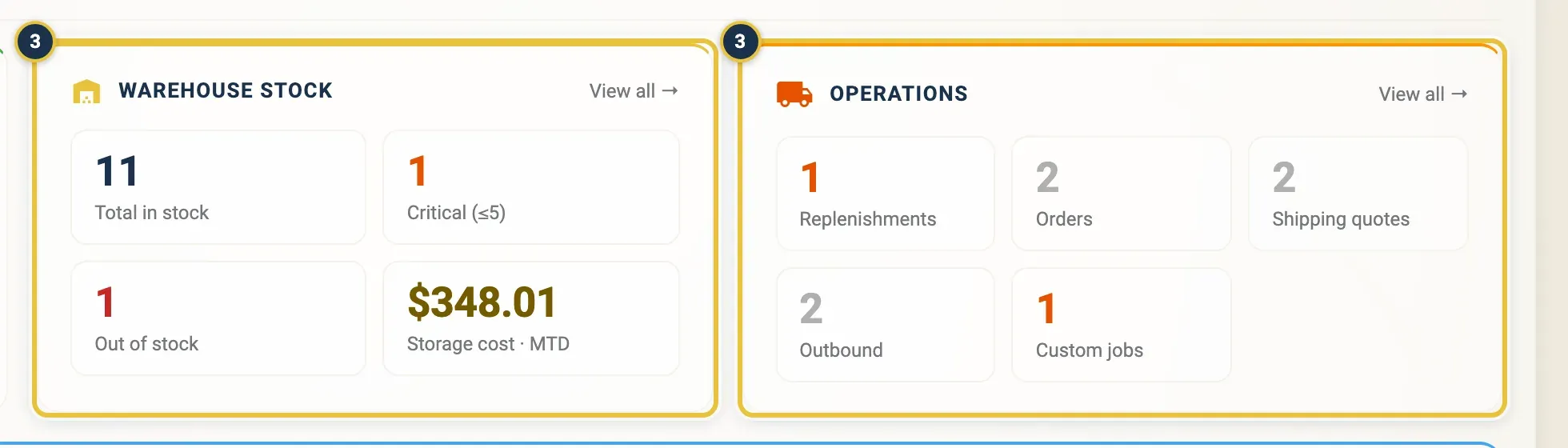
The Warehouse Stock and Operations tiles on the Main Dashboard (3) are shortcuts to the same pages.
What each Warehousing page is for
Section titled “What each Warehousing page is for”- Orders: ask FreightNI to buy your product, from your own supplier or one they find, as a new product or a reorder.
- Shipping quotes: ask for a freight price before you ship. A quote is a price request on its own.
- Inbound stock: tell FreightNI about goods heading to the China Hub. When they arrive, the warehouse team counts the cartons.
- Stock: what you have at FreightNI, what is available, what is reserved for open requests, and what is on its way.
- Replenishments: send cartons from Stock to Amazon.
- Outbound orders: release cartons to anywhere else, such as a customer or another warehouse, for collection or delivery.
- Custom jobs: ask for relabelling, bundling or repacking.
- Billing breakdown: your storage cost building up day by day, ready for the monthly storage invoice.
Your FreightNI invoices are under Invoices in your user menu. See Invoices.
How Warehousing requests work
Section titled “How Warehousing requests work”Each Warehousing page is its own request. A quote does not turn into an order, and an order does not create an inbound by itself. When you need the next step, you add it on its own page.
- You add the request with the Add button on the page and click Submit.
- The warehouse team picks it up and moves it through its statuses.
- You follow the status in the list, and the warehouse team can email you when it changes. See Emails we send you.
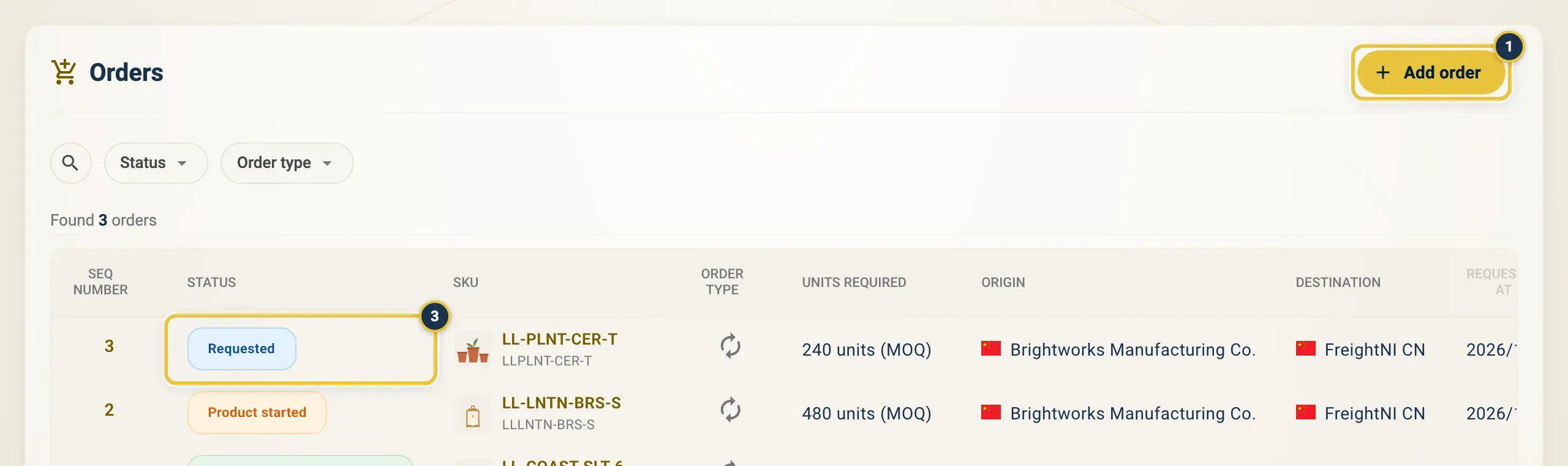
Each page has its own Add button (1), and the list shows each request’s status (3).
Good to know
Section titled “Good to know”- Once you submit a Warehousing request, you can open it but not change it. If something is wrong, contact the warehouse team.
- Every request gets a sequence number (Seq Number) when it is saved. Quote it when you contact FreightNI.
- Each Warehousing page has its own short video in the help panel.