

Signing in, passwords and 2FA
EasyReports protects your account with a password and a 6-digit code (two-factor authentication, or 2FA). This page explains how signing in works and what to do when something goes wrong.
Sign in with your email and password
Section titled “Sign in with your email and password”- On the EasyReports sign-in page, enter your Email and Password.
- Click Sign in.
- On the Two-Factor Authentication page, type the 6-digit code we just sent you.
- If you belong to one organisation, you go straight to your Main Dashboard. If you belong to several, pick one first. See Organisations, teammates and switching.
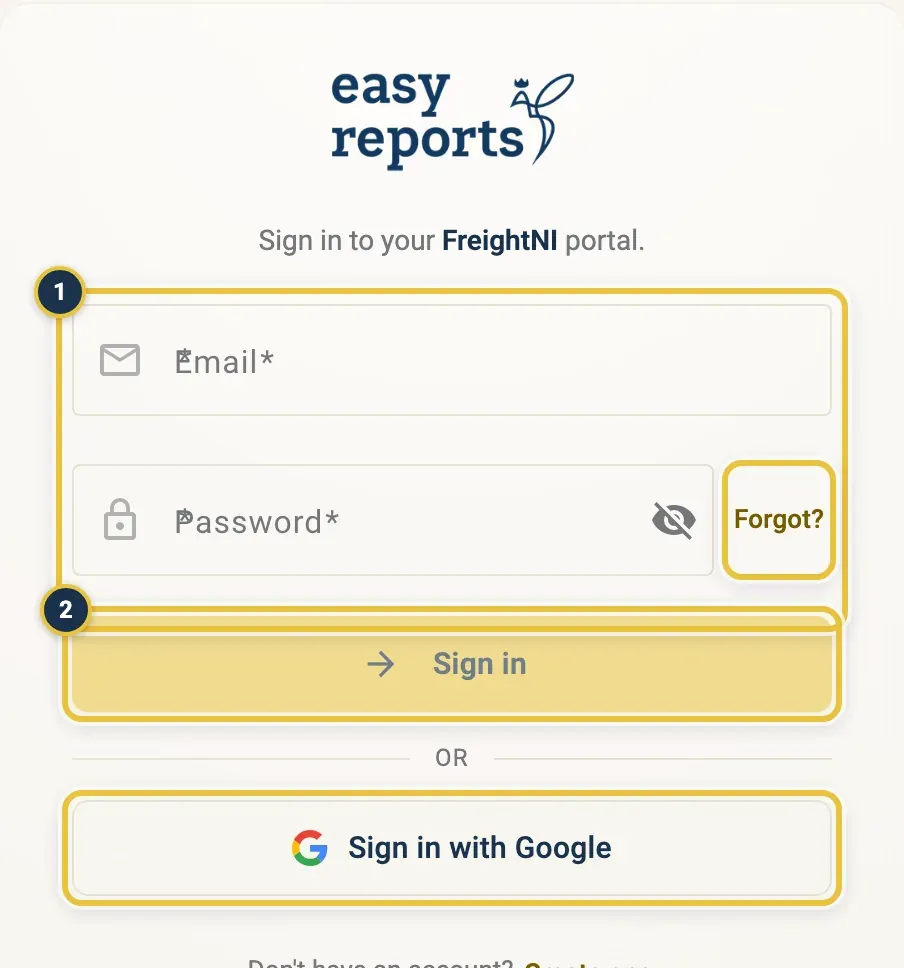
Email and Password (1), then Sign in (2). Forgot? sits next to the password; Sign in with Google is below.
Use the two-factor code
Section titled “Use the two-factor code”The code goes to your phone by text message if your phone number is confirmed. Otherwise it goes to your email.
- Didn’t get the code? Click Resend code. You can ask again every 30 seconds. An email can take a minute to arrive, so check your spam folder too.
- Want it another way? Click Send via Email or Send via SMS (shown when that option is available).
- Typed the wrong code? You get 3 tries per code. After that, click Resend code for a new one.
- Code expired? A code works for 5 minutes. Click Resend code.
Once you enter a code on a device, EasyReports remembers that device for 30 days and doesn’t ask for a code there again until then.
The Two-Factor Authentication page shows where the code went (your email or phone, partly hidden), six boxes for the code (you can also paste it), and the Resend code and Send via Email or Send via SMS buttons. The code is checked as soon as you type the sixth digit.
Sign in with Google
Section titled “Sign in with Google”If your email address is a Gmail address or a Google Workspace address, you can click Sign in with Google on the sign-in page.
- Click Sign in with Google and choose your Google account.
- You go straight in. A Google sign-in doesn’t ask for the 6-digit code, because Google’s own security covers it.
If you see “An account with this email already exists. Sign in with your password once to connect Google.”, sign in with your email, password and code once. EasyReports then connects Google, shows “Google sign-in connected” and sends you an email about it. From then on, Sign in with Google works.
If you see “Your company already uses EasyReports”, sign in with the email address you already use for EasyReports.
Reset a forgotten password
Section titled “Reset a forgotten password”- On the sign-in page, click Forgot? next to the password field.
- In the Forgot Password? box, enter your email and click Send reset link.
- Open the “Reset your password” email and click Choose a new password. The email asks you to use the link within 1 hour, and it works once.
- On the Reset Your Password page, enter a New Password (or click Generate Secure Password) and click Save Password.
- Click Back to sign in and sign in with the new password.
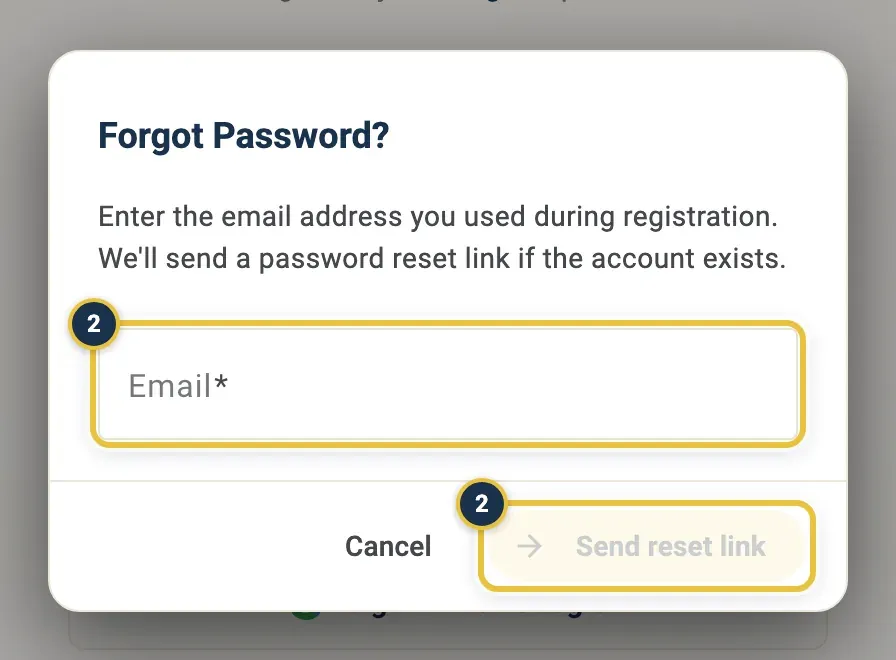
Enter your email and click Send reset link (2).
If you see Link Expired or an error when you save, the link is too old or already used. Ask for a new one with Forgot?.
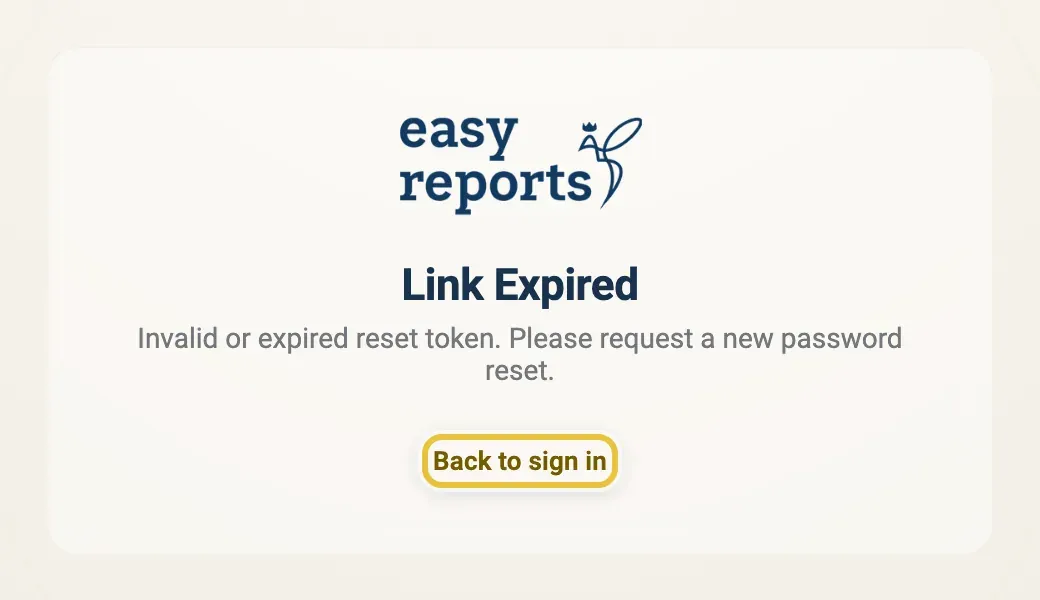
An old or used reset link shows Link Expired. Back to sign in takes you to the sign-in page.
You can also change your password while signed in: open My user and click Change password. See Your user profile.
Password rules
Section titled “Password rules”A new password needs:
- at least 8 characters
- uppercase and lowercase letters
- at least one number
- at least one special character (@$!%*?&)
Good to know
Section titled “Good to know”- For safety, the Forgot Password? box never says whether an account exists. If no email arrives, check the address and your spam folder.
- After several failed sign-in attempts, EasyReports asks you to wait before trying again (“Too many failed login attempts”).
- Signed up with Google and want a password too? Use Forgot? to set one.
- To sign out, open the user menu and click Logout.