
Organisations, teammates and switching
In EasyReports, an organisation is one business: its products, stock, shipments, invoices, Amazon connection and plan. Your user can belong to more than one organisation, and several teammates can share one.
Choose an organisation when you sign in
Section titled “Choose an organisation when you sign in”After you sign in, EasyReports checks which organisations you belong to.
- One organisation: you go straight to its Main Dashboard.
- Several organisations: you see Choose your organization. Pick one from the list, or type in Search by name or client ID… to find it.
Each row starts with the client ID badge, then the name and owner, and ends with the plan badge (Free, Lite or Pro). Click a row to open that organisation.
Switch organisation while you work
Section titled “Switch organisation while you work”- Click your name in the top right to open the user menu.
- Click the organisation row under your name (“Tap to switch organization”).
- In Switch Organization, pick another organisation, or search by name or client ID.
- EasyReports reloads the page you were on for the new organisation.
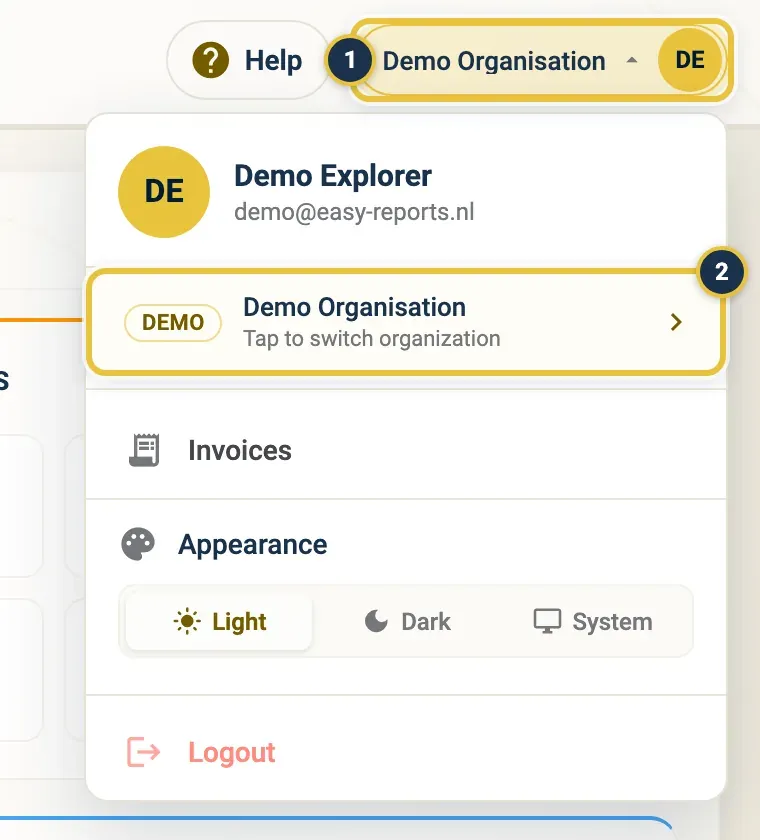
Click your name (1), then the organisation row (2).
To stay where you are, close the box.
Everything you see (stock, replenishments, invoices, reports, settings) belongs to the organisation that is selected. Check the name in the top right before you create a request.
Create your organisation after signing up
Section titled “Create your organisation after signing up”When you sign up yourself, you start without an organisation of your own. The first time you sign in, EasyReports shows Create your organization.
- Enter your Organization name (your business name, or your Amazon storefront name).
- Check the Owner. It is filled in with your name.
- Click Create and continue.
EasyReports creates the organisation, makes you a member, opens it and takes you to its Main Dashboard. A new organisation starts on the Free plan.
Want to look around first? Pick the demo organisation under or. The demo shows sample data and is read-only. To leave the create screen without doing anything, click Log out.
Give a teammate access to your organisation
Section titled “Give a teammate access to your organisation”Teammates create their own EasyReports account. You can’t add users to your organisation yourself: FreightNI adds them.
- Your teammate signs up on the sign-in page with Create one, or with Sign up with Google. See Getting started.
- They ask FreightNI to add their account to your organisation, and give the email address they signed up with and the name of your organisation.
- Once FreightNI has added them, your teammate signs in and sees your organisation.
Your teammate doesn’t need to create an organisation of their own. If they see Create your organization before FreightNI has added them, they can click Log out and sign in again later.
Good to know
Section titled “Good to know”- Your plan (Free, Lite or Pro) belongs to the organisation, not to your user. See Your subscription and plans.
- My Subscription, Organization Settings and Amazon Settings in the user menu always apply to the selected organisation. See Organization settings.
- The demo organisation shows sample data only, never your own. It is read-only.