

Amazon Exports
Amazon Exports collects the raw reports from your Amazon account, for every marketplace and every month, so you can download the files yourself. It is a data export rather than a report, and it is part of the Lite and Pro plans.
Choose a report type and month in Amazon Exports
Section titled “Choose a report type and month in Amazon Exports”- Click Reports in the top menu, then Amazon Exports (on the right of the menu).
- Click the Type chip and pick a report type: S & T Reports, Disbursements, Storage Fees, Inventory Ledger, Listings, PPC Campaigns or PPC Search Terms.
- Click the month chip and pick a month.
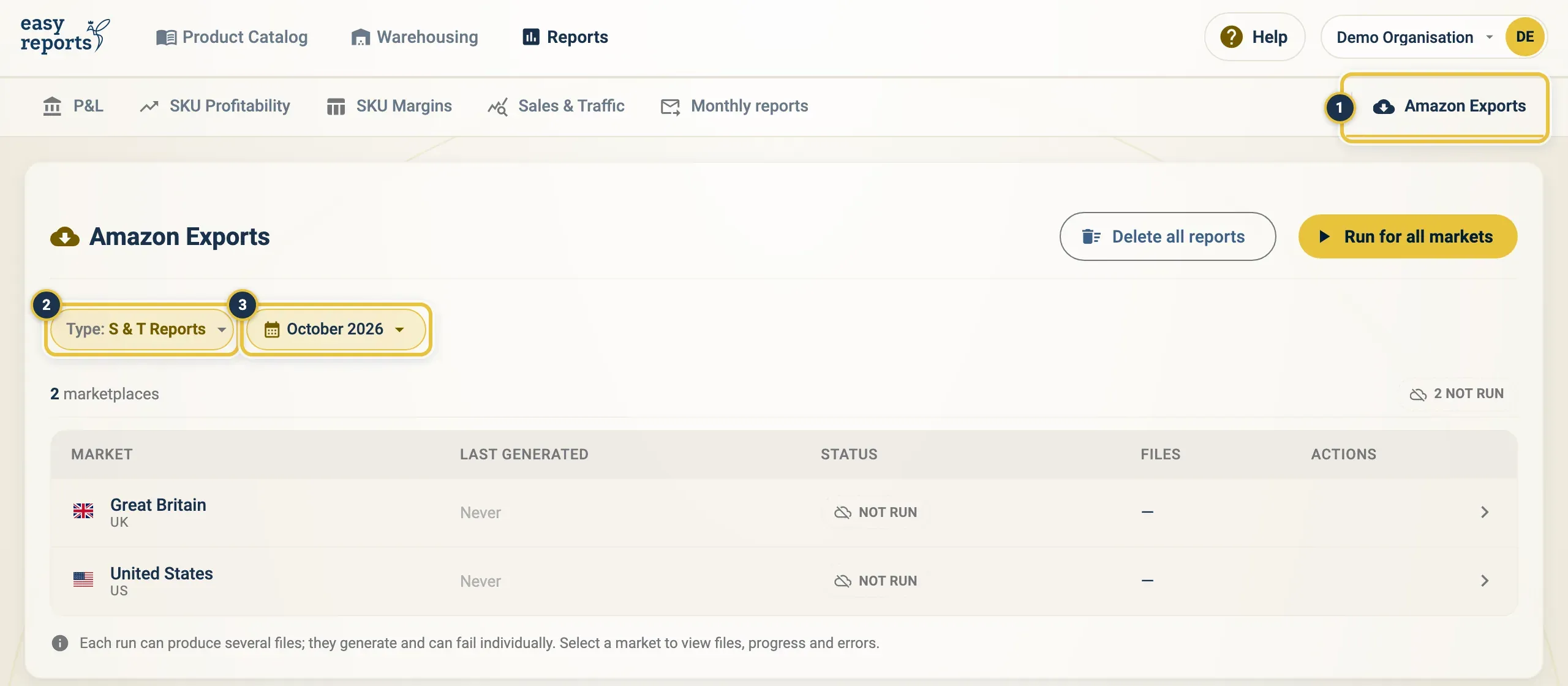
Amazon Exports under Reports (1), then the Type chip (2) and the month chip (3).
Each market shows when it was Last generated, its Status (Done, Partial, In progress, Queued, Failed or Not run) and how many Files are ready.
Run Amazon Exports for all markets
Section titled “Run Amazon Exports for all markets”- Pick the report type and month.
- Click Run for all markets.
- Wait while the status shows Queued and In progress. The page updates by itself.

Run for all markets (2) fetches the chosen report for every market.
Run Amazon Exports for one market
Section titled “Run Amazon Exports for one market”- Click a market in the list. The Amazon Report panel opens.
- Click Run, or Run again if files already exist.
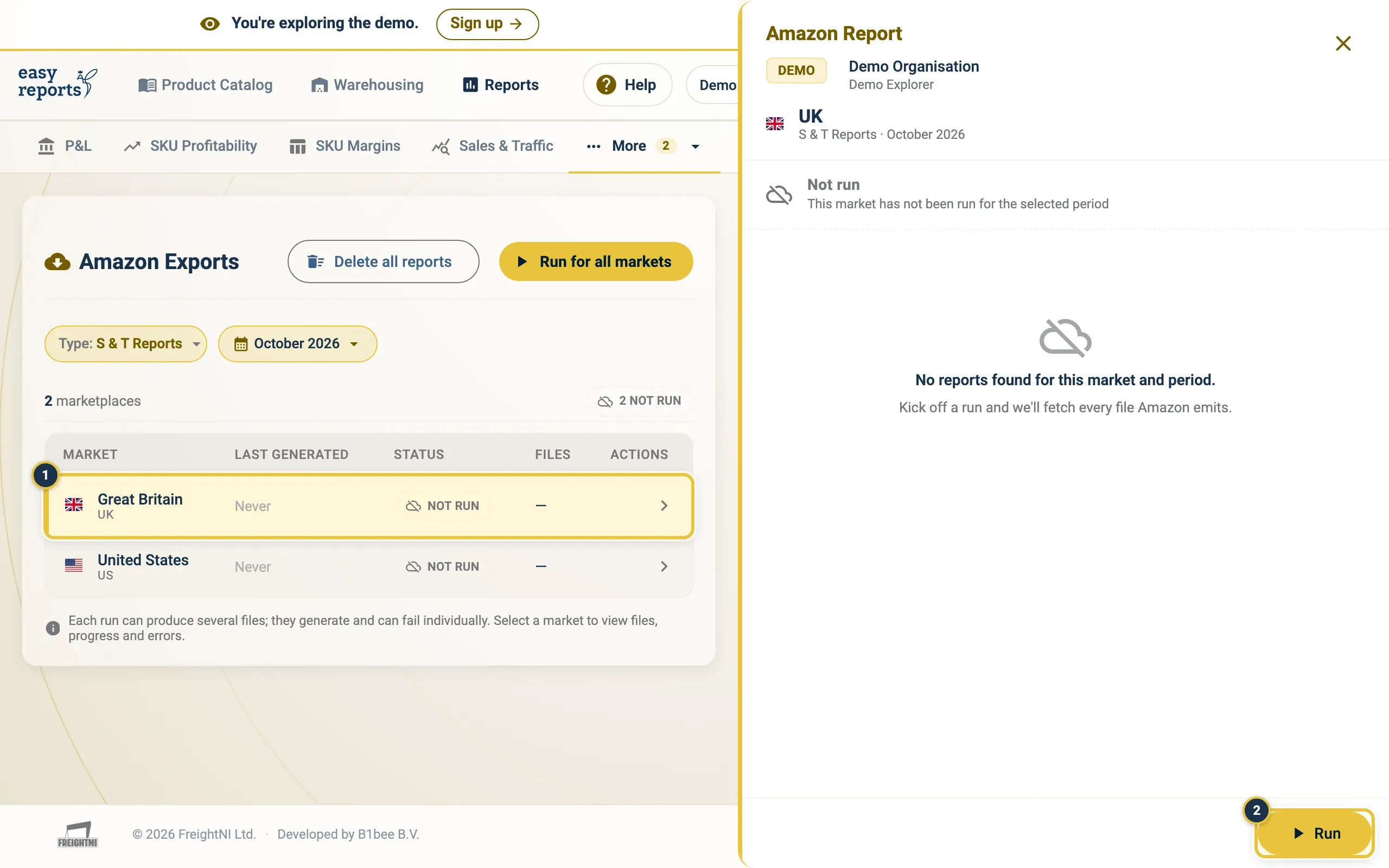
Click a market (1) to open its Amazon Report panel, then click Run (2).
Download Amazon Exports files
Section titled “Download Amazon Exports files”- Click a market in the list.
- Click the download button next to a file to download it on its own.
- Or click Download (number) ready files to get every finished file at once.
Retry a failed Amazon Exports file
Section titled “Retry a failed Amazon Exports file”Each run can produce several files. They are generated one by one and can fail on their own.
- Click the market with a Partial or Failed status.
- Find the file with an error.
- Click Retry next to that file. Only that file is fetched again.
Good to know
Section titled “Good to know”- Amazon Exports needs your Amazon account connected and at least one market set up. See Connect Amazon and Amazon settings.
- The page works per organisation. If you see a message asking you to pick one, choose a single organisation from the top-right menu.
- For reports that EasyReports reads for you, see Reports at a glance.