

Invoices
The Invoices page keeps all your FreightNI invoices in one place. You get one invoice for each replenishment, and one for storage every month.
Open the Invoices page
Section titled “Open the Invoices page”- Click your name or avatar in the top right to open the user menu.
- Choose Invoices.
You can also click the Invoices tile on your Main Dashboard.
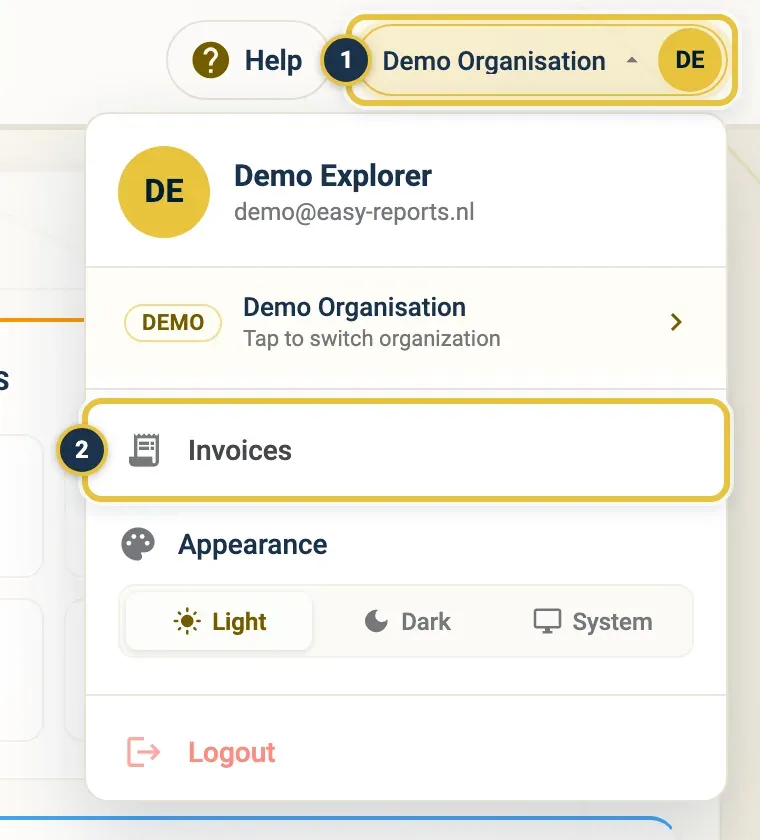
Your name (1), then Invoices (2).
See what is still open on your invoices
Section titled “See what is still open on your invoices”At the top of the Invoices page, two cards show what you still owe:
- Unpaid: how many invoices are not paid yet, and the total amount.
- Overdue: how many unpaid invoices are past their due date, and the total amount.
Click the Unpaid card to show only your unpaid invoices.
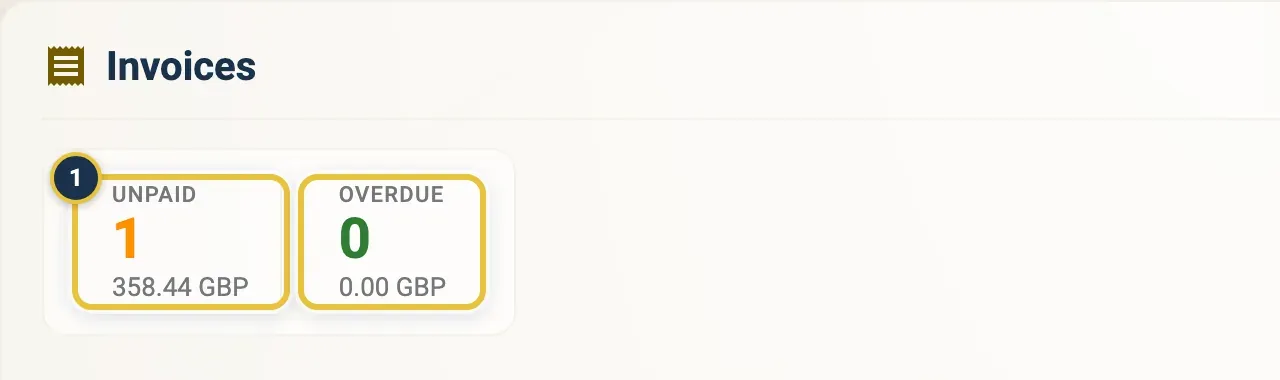
The Unpaid card (1) and the Overdue card.
Find an invoice
Section titled “Find an invoice”Use the filters above the invoice list:
- Paid: pick Paid, Unpaid or both.
- Status: pick one or more statuses, such as Waiting payment or Paid.
- Date: pick a date range.
- To start again, click Clear all.
Each row shows the Invoice #, the Reference, whether it is Paid and Sent, the Invoice Date, the Due Date, the Amount and the Status. Click a column heading to sort by it.
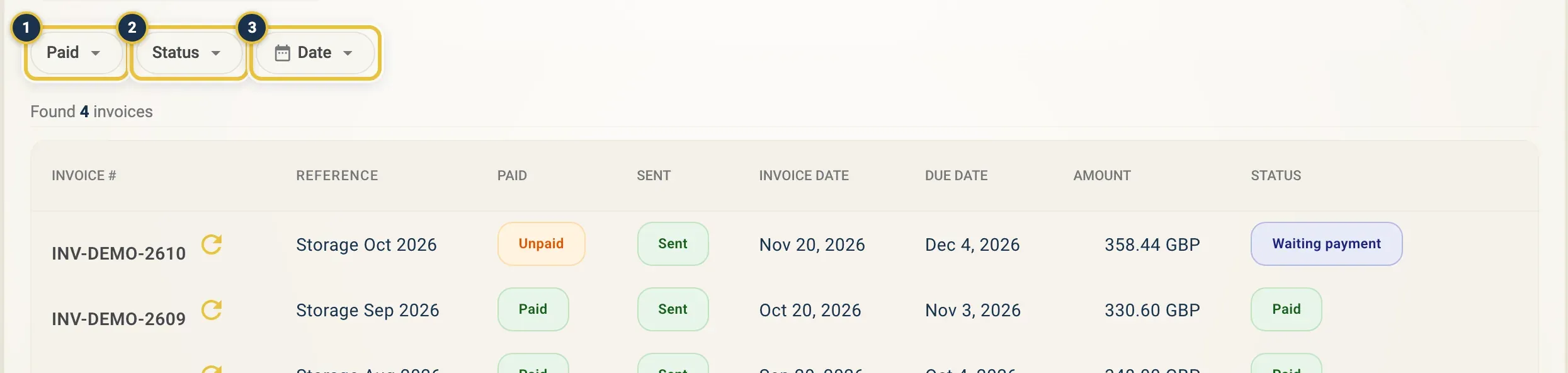
Paid (1), Status (2) and Date (3) above the list.
Click Unpaid to show only unpaid invoices, then open the ⋮ menu on a row.
Pay an invoice
Section titled “Pay an invoice”- On the Invoices page, click the invoice number (or anywhere on the row).
- The invoice opens online in a new tab.
- Pay it there, using the payment options shown on the invoice.
You can also open the ⋮ menu at the end of the row and choose View Invoice.
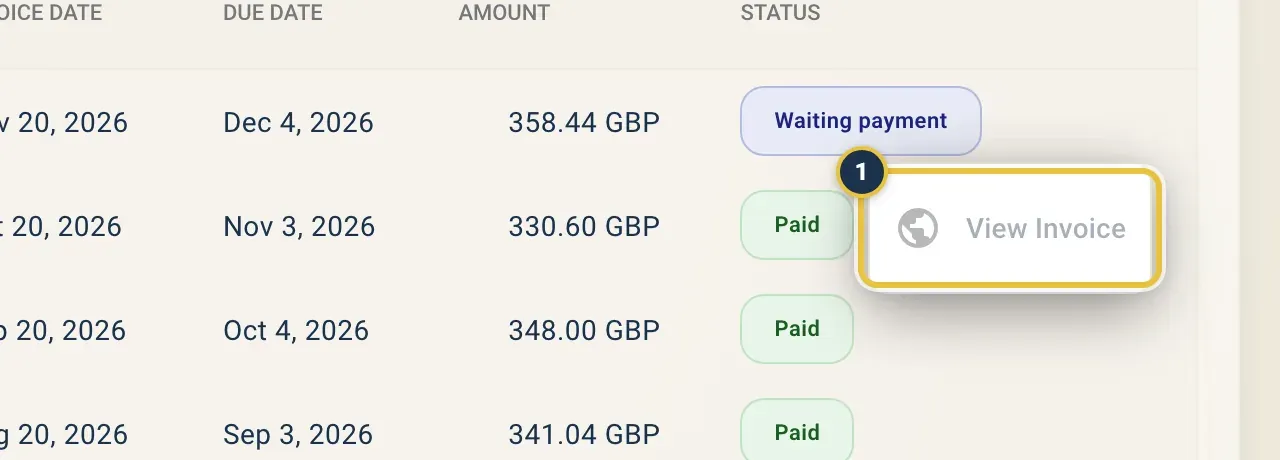
The ⋮ menu with View Invoice (1), which opens the invoice online. It is greyed out until the invoice has an online link (see below).
Once FreightNI registers your payment, the invoice shows Paid. A replenishment that was waiting for payment then moves on to dispatch. See After you submit.
When an invoice has no link yet
Section titled “When an invoice has no link yet”Sometimes the invoice number shows without a link. Click the refresh button next to it (Refresh invoice link) to fetch the online link again.
Good to know
Section titled “Good to know”- Invoice statuses on the Invoices page: Draft, Needs approval, Waiting payment, Paid, Voided and Deleted. A Voided invoice has been cancelled and does not need paying.
- The Sent column shows whether the invoice was emailed to you.
- Storage invoices are built from your daily storage cost. See Billing breakdown for how they add up.
- The Invoices page shows FreightNI warehouse invoices only. Your EasyReports plan invoices are on Your subscription and plans.
- If you have more than one organisation, the Invoices page shows the invoices of the organisation you have selected. See Organisations, teammates and switching.