

Organization settings
Organization settings holds the preferences shared by everyone in your organisation: its name and owner, the currency your reports use, the monthly report email and where you are registered for VAT/GST.
Open Organization settings
Section titled “Open Organization settings”- Open the user menu (top right).
- Click Organization Settings.
If you work for more than one organisation, pick the right one in the user menu first. See Organisations, teammates and switching.
Change your organisation name or owner
Section titled “Change your organisation name or owner”The Organization card shows the Organization name, Owner, Client identifier and your Subscription plan, as shown on your invoices.
- In Organization settings, click Edit on the Organization card.
- Change the organisation name or owner.
- Click Update.
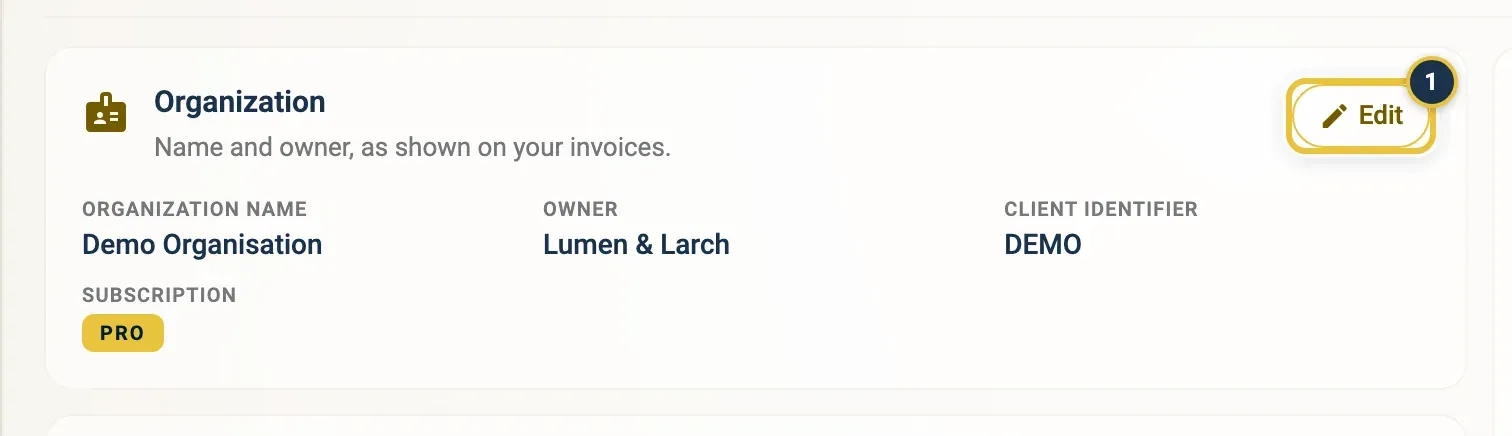
Click Edit (1) on the Organization card.
The client identifier and billing details are set by FreightNI. To change your plan, see Your subscription and plans.
Set your reporting currency
Section titled “Set your reporting currency”The reporting currency is used by the Main Dashboard and the P&L. Sales in other marketplaces are converted into it.
- In Organization settings, find the Reporting currency card.
- Click Currency and pick a currency. It saves straight away.
If you haven’t chosen one yet, the card says Not chosen yet and suggests a currency based on your marketplaces. Click Keep (for example Keep GBP) to confirm it, or pick another.
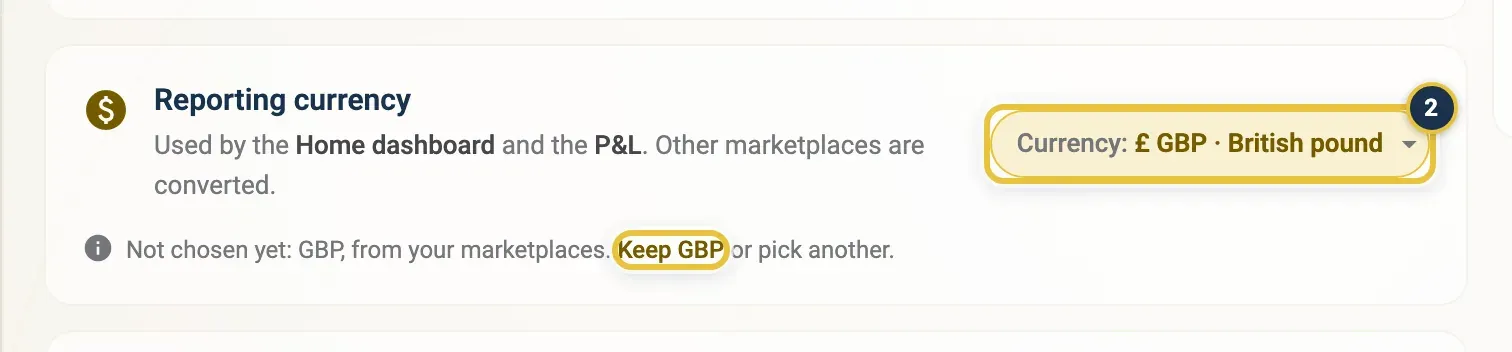
Click Currency (2) to pick one, or Keep to confirm the suggestion.
Turn the monthly report email on or off for yourself
Section titled “Turn the monthly report email on or off for yourself”Every month EasyReports emails a summary report. On Free it covers your warehouse: stock, open tasks and invoices. On Lite and Pro it also covers last month’s sales and ads.
- In Organization settings, find the Monthly report email card.
- Switch Email me the monthly report off to stop receiving it, or on to get it again.
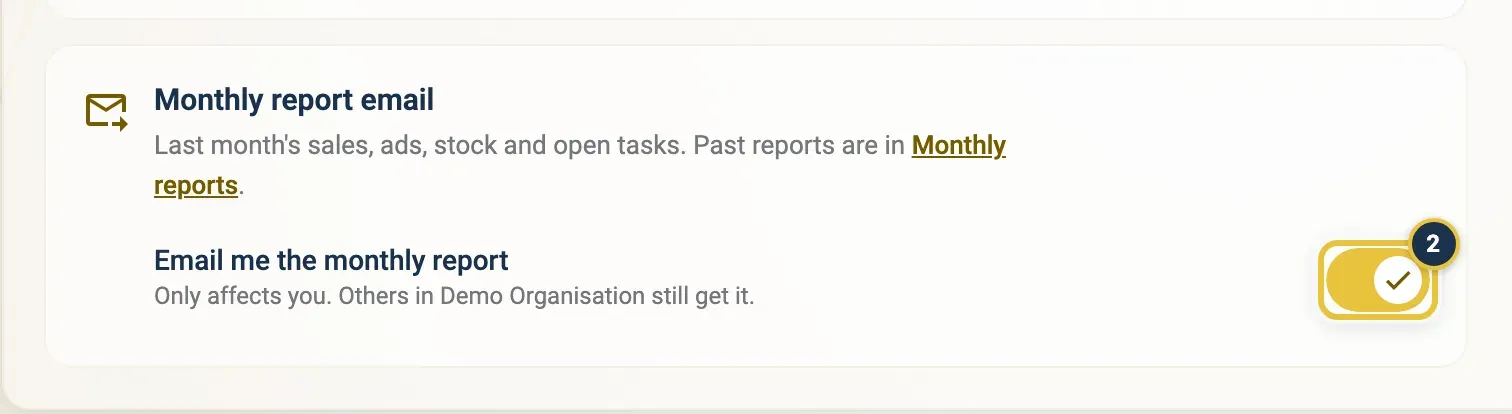
The Email me the monthly report switch (2).
This only affects you; others in your organisation still get it. If the switch is greyed out, the monthly report is off for your whole organisation. Past reports are on the Monthly reports page.
Set where you are registered for VAT/GST
Section titled “Set where you are registered for VAT/GST”Where you are registered for VAT or GST, the P&L shows Amazon fees without VAT/GST.
- In Organization settings, find the VAT / GST registration card.
- For each marketplace, switch Registered on if you are registered for VAT/GST there, or off if not. Each switch saves straight away.
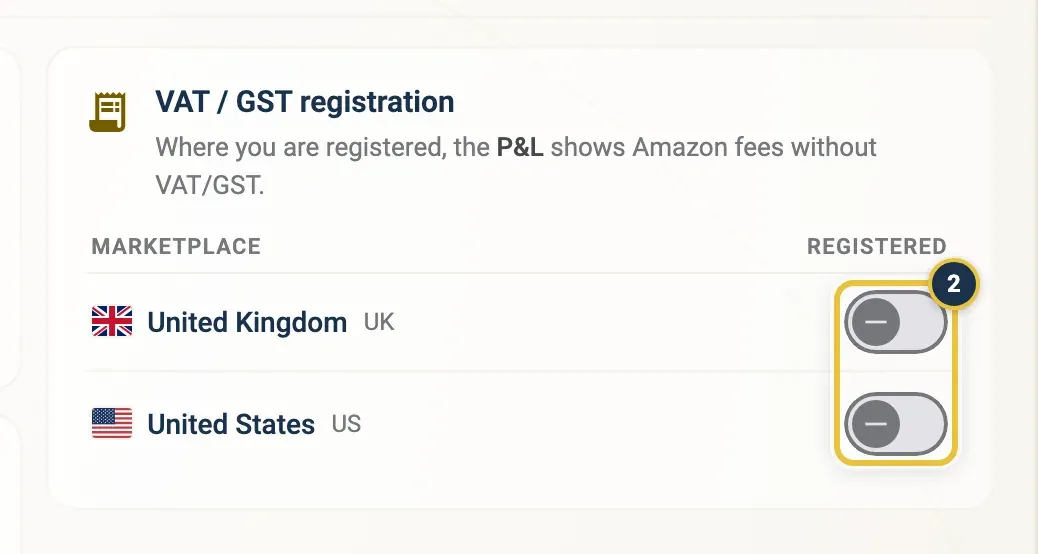
A Registered switch (2) for each marketplace.
The list shows the marketplaces enabled in Amazon settings. If it says No marketplaces enabled yet, enable them there first.
Good to know
Section titled “Good to know”- Changes in Organization settings apply to everyone in your organisation, except the monthly report switch, which is personal.
- See Profit and Loss report for how currency and VAT registration affect the figures.