

Stock
The Stock page shows what you have at the FreightNI warehouse, product by product. It updates itself as goods arrive and leave, so you never need to change it yourself.
Search the Stock page for a SKU, then open the line to see its Movements and History.
Check your stock
Section titled “Check your stock”- Click Warehousing in the top menu, then Stock. You can also click the Warehouse Stock tiles on your Main Dashboard.
- Find a product with the search box, or scroll the list.
- Read the columns for each SKU:
- Units Remaining: the units in the warehouse.
- Cartons Remaining: the cartons in the warehouse, split into Available and Reserved. Reserved cartons are held for open requests, such as a replenishment or outbound order you have submitted.
- Cartons in Route: cartons on the move, split into Incoming (inbound stock not yet arrived) and Dispatched (cartons on their way out to Amazon or another destination).
- Cartons CBM and Total CBM: the volume, in cubic metres, with cubic feet (CBF) underneath.
- Estimated Storage Cost: what this stock is likely to cost to store.
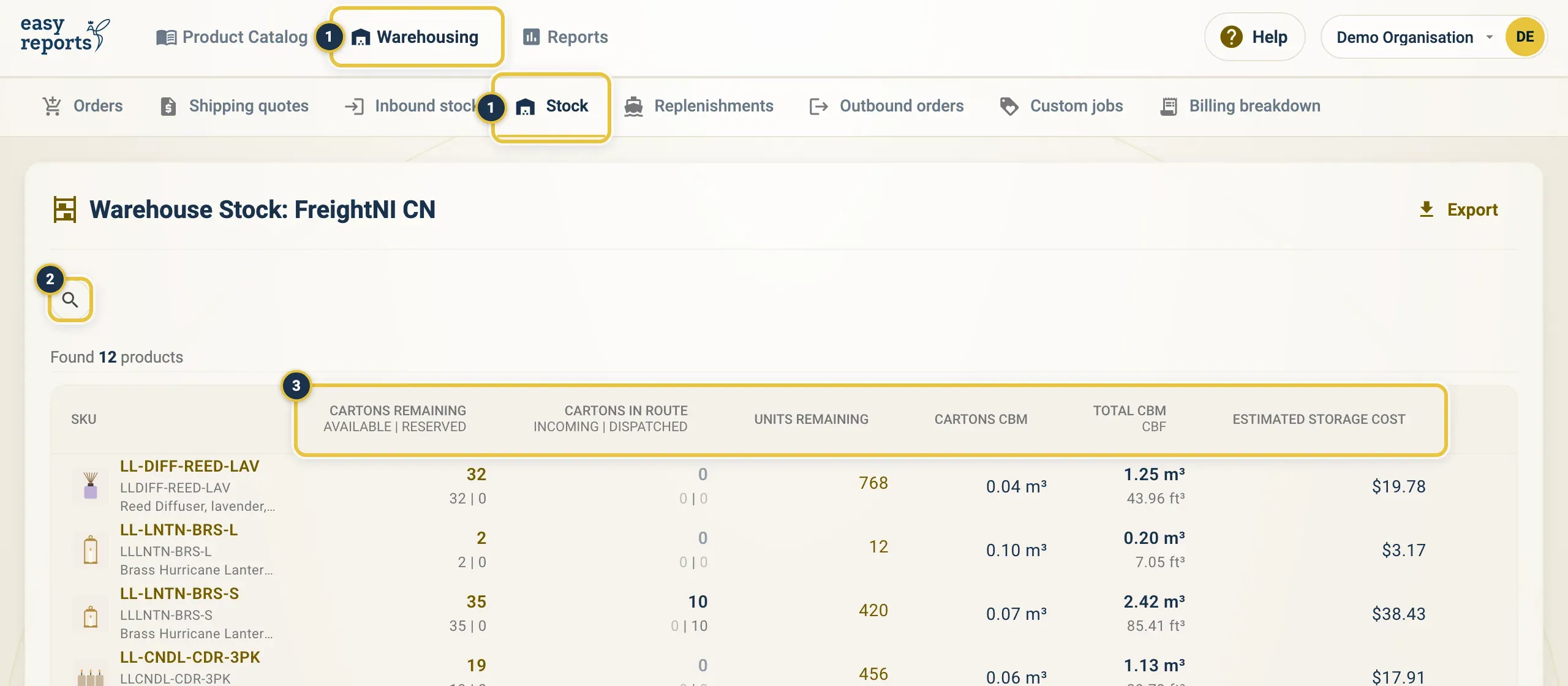
Warehousing, then Stock (1). The search button (2) and the columns for each SKU (3).
See the details and movements of a stock line
Section titled “See the details and movements of a stock line”- On the Stock page, click a row to open the Stock panel.
- The Overview tab shows remaining, reserved and available cartons, and units per carton.
- Open the Movements tab to see each carton in and out.
- Open the History tab to see who changed the record and when.
- Click the SKU in the list instead to open the product itself. See Product Catalog.
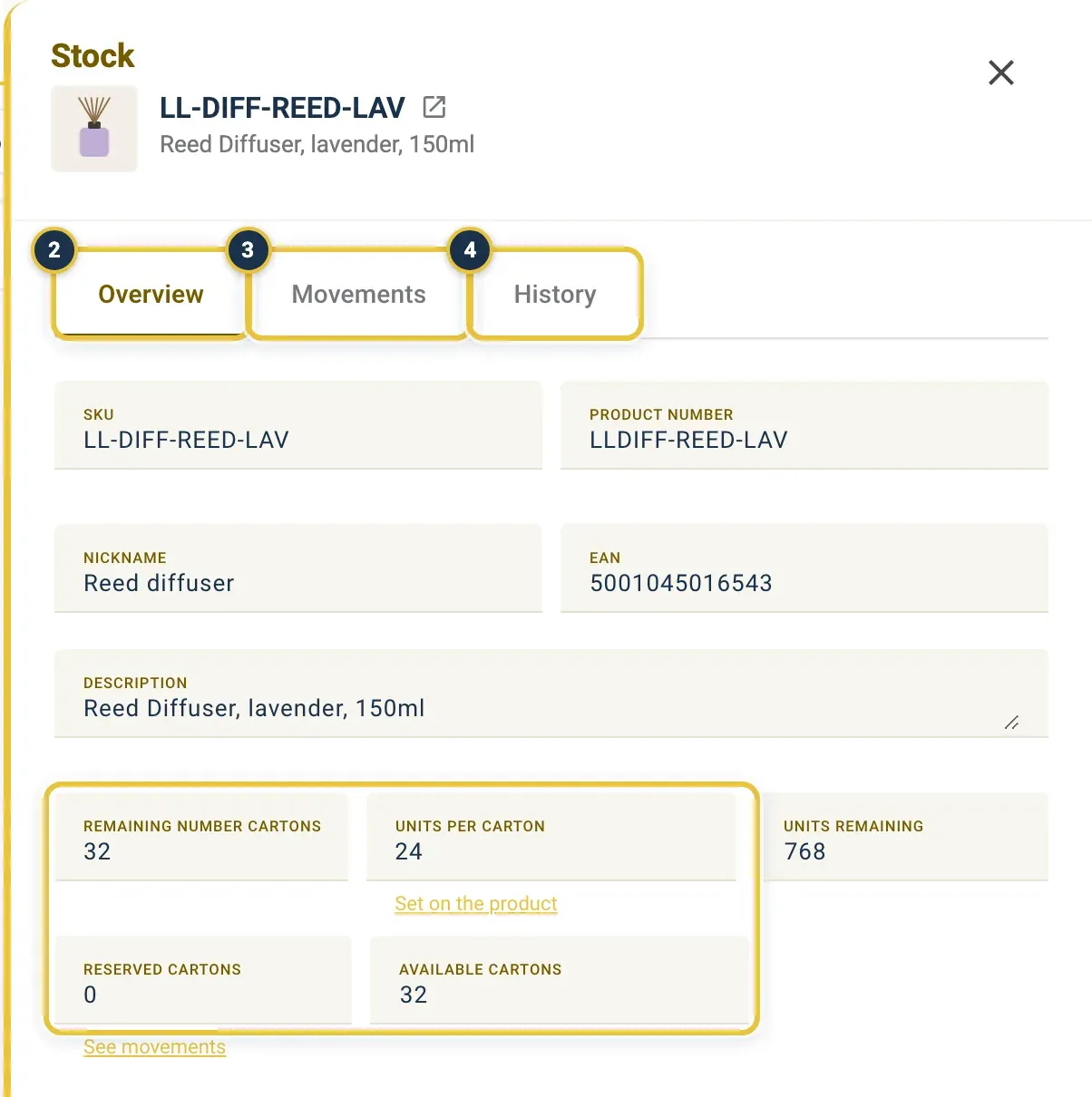
The Overview tab (2) with remaining, reserved and available cartons, then Movements (3) and History (4).
Export your stock
Section titled “Export your stock”- On the Stock page, click Export.
- Choose CSV or Excel. The file downloads straight away.
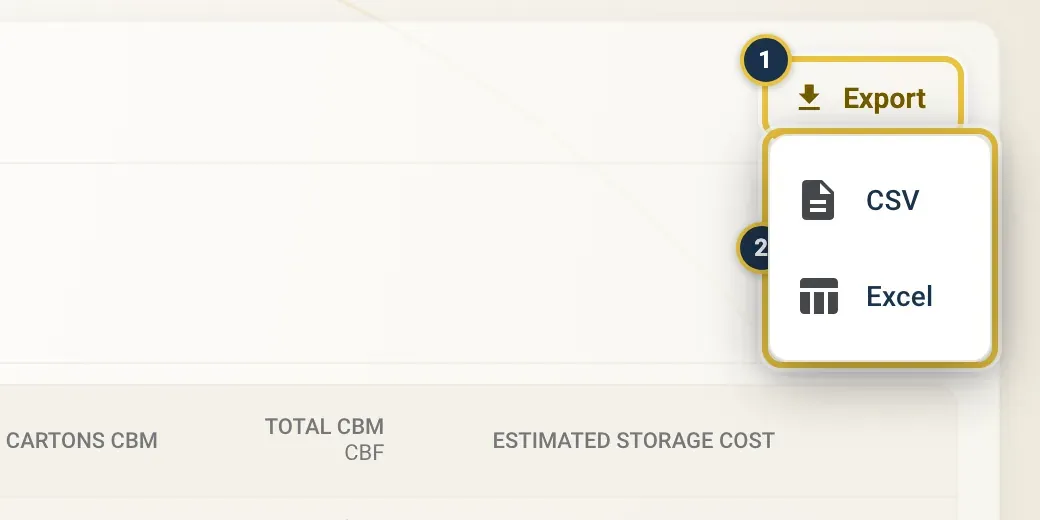
Export (1), then CSV or Excel (2).
Good to know
Section titled “Good to know”- You can only send Available cartons. Cartons still on their way in are not available until the warehouse team has counted them on arrival.
- Incoming cartons show the number you expected. What actually arrives is counted by the warehouse and can differ. See Inbound stock.
- Stock records are kept up to date by the warehouse team. If a number looks wrong, contact FreightNI.
- Running low? See Running low: restock.